The short answer
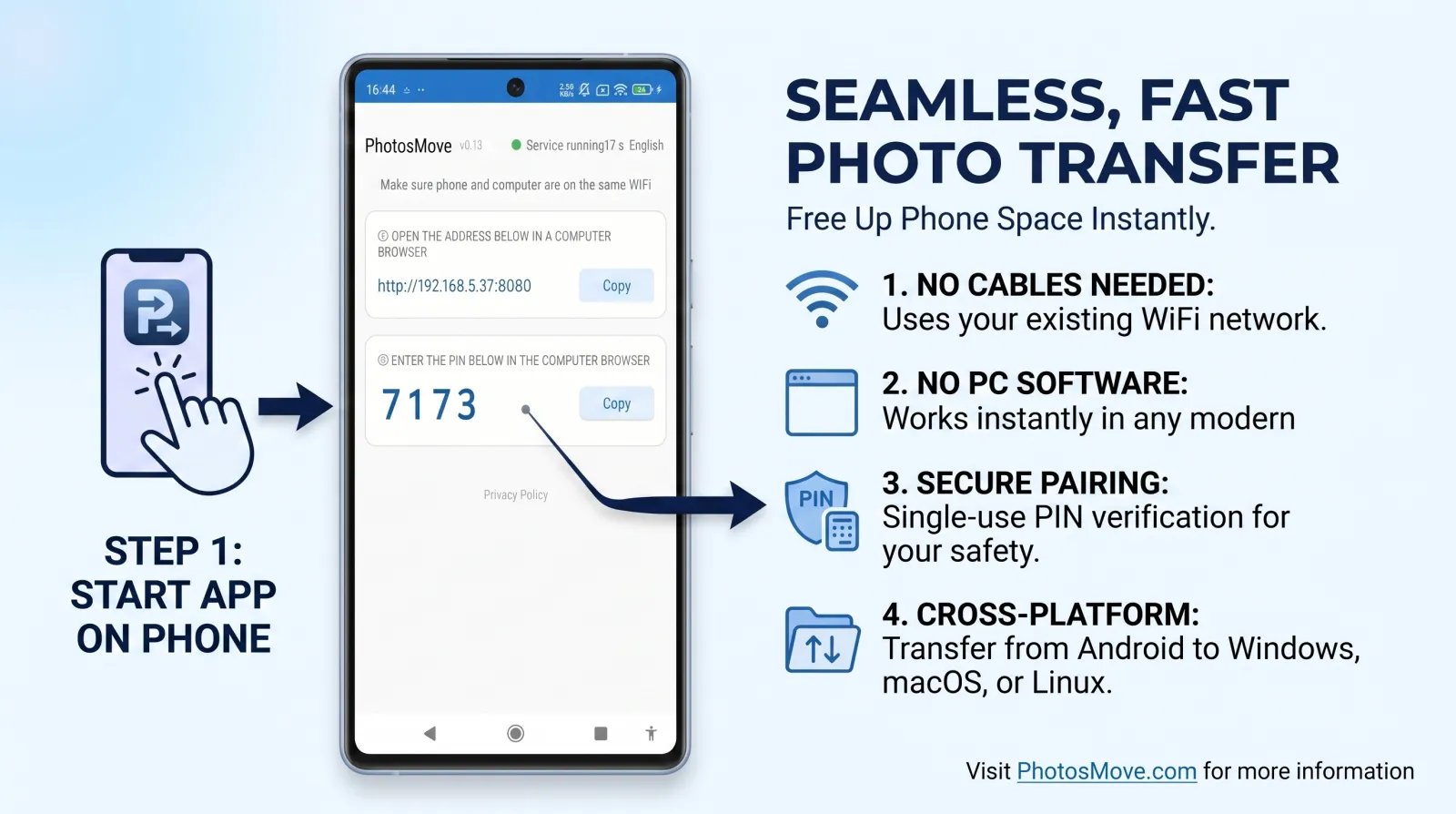
Move your photos from Android to your PC with a local transfer tool like PhotosMove — start it on the phone, open the browser on the PC, enter the PIN, download one verified ZIP. That's your local copy. Then add a second copy on an external drive (or NAS) and, ideally, one off-site copy to complete 3-2-1.
What "backup" actually means (and why the phone alone isn't one)
Your phone is a single point of failure: one drop, one factory reset, one water bottle, and years of photos are gone. A backup means having the data in at least one other place. The most useful first step is a local copy on your PC because:
- You control it — no service policy changes, no quota pricing surprises.
- It's fast over Wi-Fi (tens of GB per hour) compared to cloud upload.
- It's lossless — originals, EXIF, folder structure, everything.
But a PC copy is still only one copy in one location. That's where the 3-2-1 rule comes in.
The 3-2-1 rule for photos
- 3 copies of your library: phone, PC, external drive or cloud.
- 2 different media types: e.g. internal SSD + external HDD/SSD (or optical). Different failure modes mean one media dying doesn't take everything.
- 1 off-site copy: at work, a friend's house, a safe deposit box, or encrypted cloud. Protects against theft, fire, and water damage at home.
For most people the pragmatic version is: phone + PC + encrypted external drive kept elsewhere (cloud-free) or phone + PC + encrypted cloud (more convenient, less private). Both are valid — pick the one you'll actually maintain.
Migration vs. backup: one useful distinction
Migration moves photos off the phone (freeing space). Backup copies them elsewhere while keeping them on the phone. PhotosMove is a one-click migration tool today — you download one verified ZIP; incremental sync is on the roadmap. That's fine for a periodic local copy: run it after trips and big events, then optionally free space on the phone once the PC copy is verified.
Methods for backing up Android photos to PC, compared
How to back up Android photos to PC (PhotosMove)
-
Start the app on your phone
Install PhotosMove and tap start. Your phone serves your albums on the local network.
-
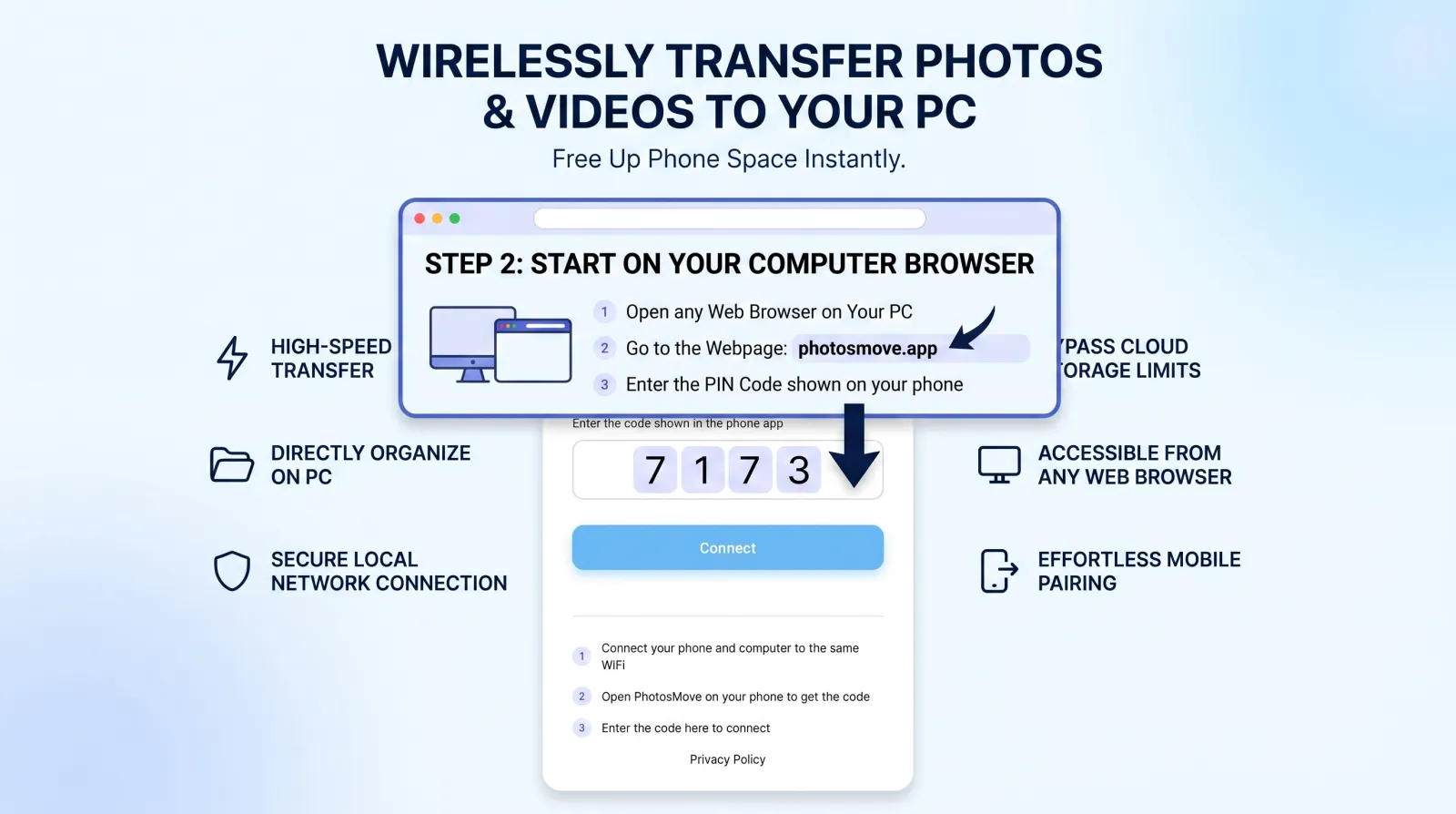
Open the connect page in any browser
Same Wi-Fi, enter the 4-digit PIN from your phone.
-
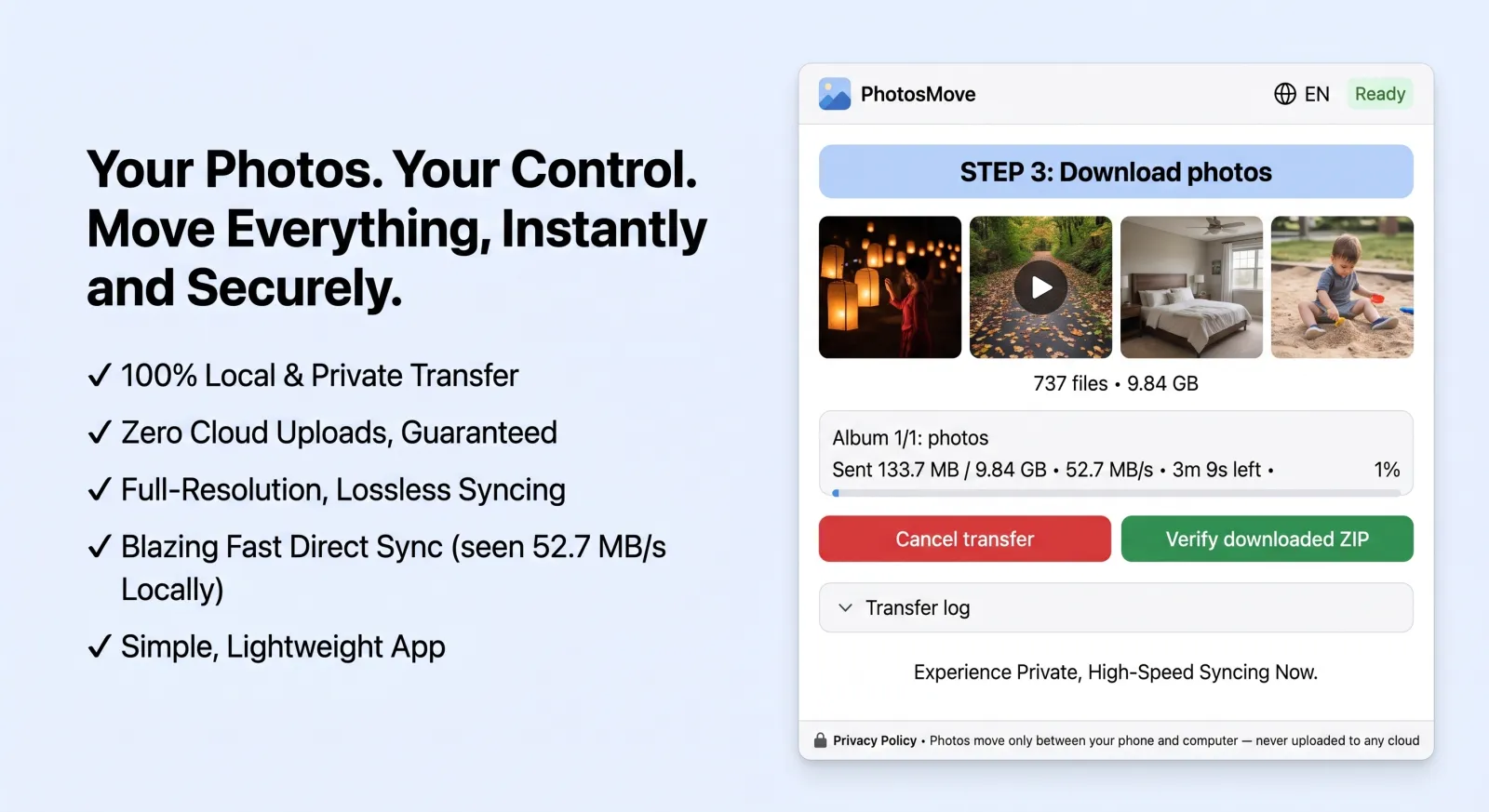
Download one ZIP — your entire library at once
Download the streaming ZIP and verify with the local SHA-256 check before you trust it as your backup copy.
-
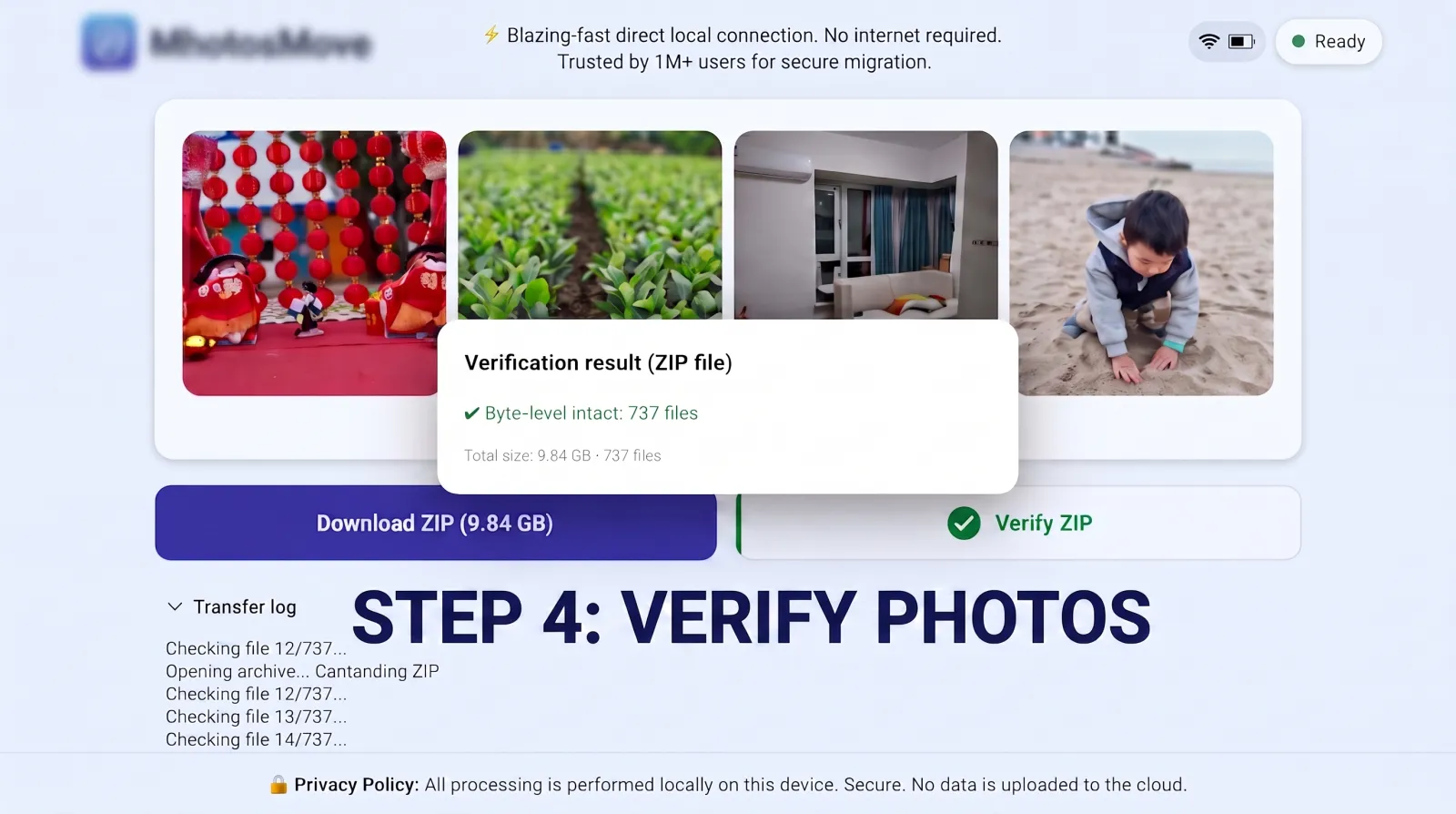
Verify it byte-for-byte
PhotosMove computes a SHA-256 checksum locally in your browser and compares it with the transfer manifest — green means every file arrived byte-perfect.
Backup hygiene tips
- Verify before deleting. Only use "free up space" on the phone after the SHA-256 check passed and you've spot-opened files.
- Two media, not one. Copy the library to an external drive as a second copy — a PC is still one drive.
- Test restores. A backup you've never restored isn't a backup. Open a random sample of files from the copy every few months.
- Encrypt the off-site copy. If a drive leaves the house, use full-disk encryption (FileVault/BitLocker) so the copy itself doesn't become a privacy leak.
Frequently asked questions
What is the 3-2-1 backup rule?
3 copies of your data, on 2 different media types, with 1 copy off-site. For photos: phone + PC + external/cloud copy somewhere else.
Is a copy on my PC a backup?
It's the essential local copy, but it's one copy in one location. Pair it with an external drive and/or off-site copy to complete 3-2-1.
Do I still need the cloud if I back up to my PC?
Not strictly — an encrypted external drive stored elsewhere is a cloud-free off-site option. Cloud adds convenience and automation at the cost of privacy and quota.
How often should I back up Android photos to my PC?
As often as you create photos you'd hate to lose — weekly or monthly for most people, always after trips or big events. PhotosMove is a one-click migration today; incremental sync is on the roadmap.
Start your real backup with a local copy.
PhotosMove — free, open source, byte-perfect, no cloud.
No account · No cloud · No PC software
Related guides