The short answer
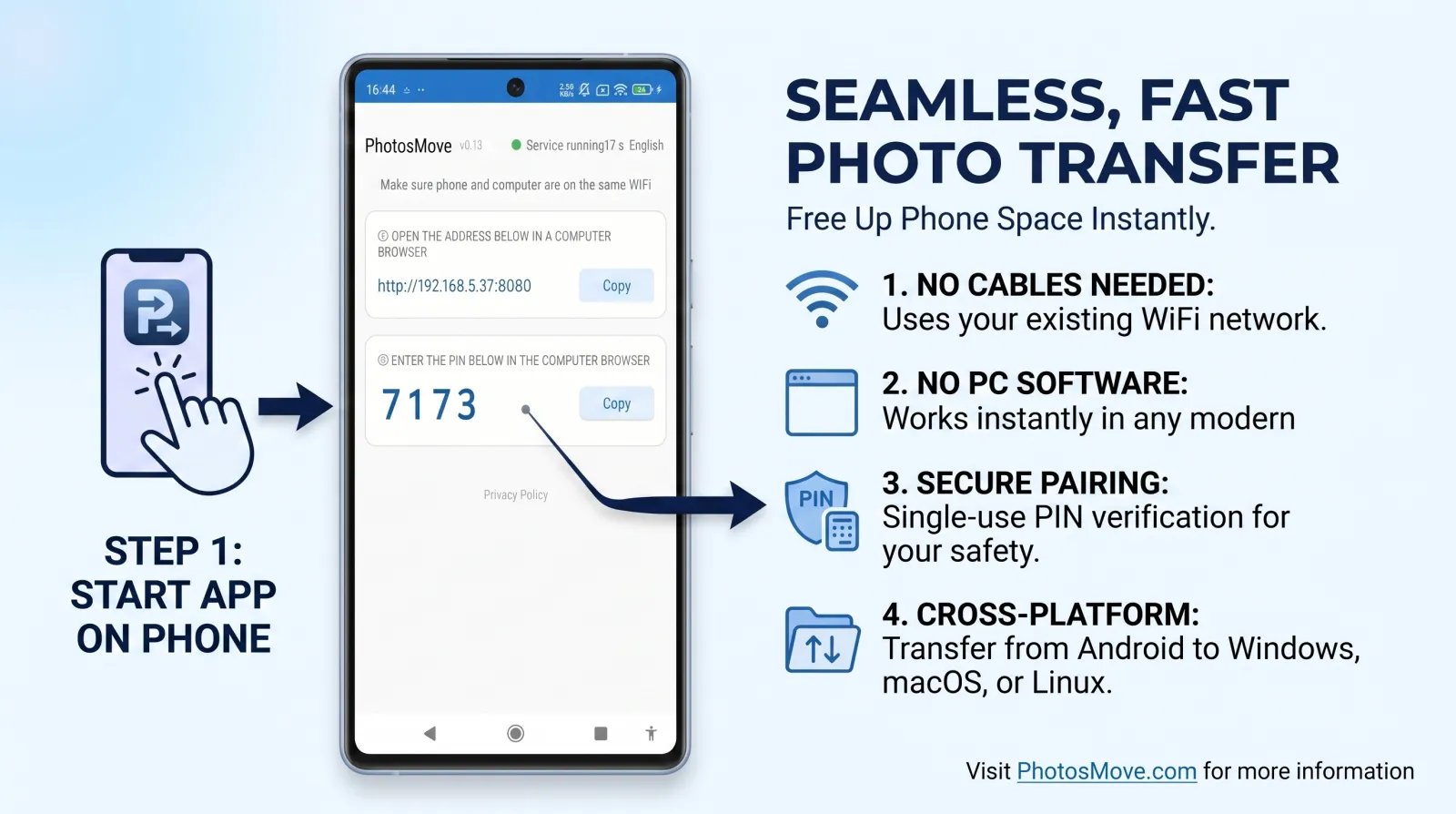
Use a Wi-Fi transfer tool that handles ZIP64 — like PhotosMove. Start it on your phone, open the browser on your PC, enter the PIN, and your 4K footage downloads inside one streaming ZIP. If the network drops, start the download again and let the SHA-256 check confirm the result.
Why big video breaks the usual methods
- FAT32's 4GB wall. If your phone's SD card or the target drive is FAT32-formatted, files can't exceed 4GB — the copy fails or truncates silently. exFAT/NTFS/APFS don't have this limit.
- MTP gives up on long transfers. A 5–10GB clip can take a while over MTP, and Android's MTP stack is notorious for dropping the connection mid-copy — restarting from zero each time.
- Cloud upload is painfully slow. 4K footage eats bandwidth; uploading tens of GB to "sync" is impractical for many creators, and some services transcode or reject it.
- Classic ZIP can't hold them. Standard ZIP tops out at 4GB per file — hence ZIP64.
Methods for moving large video, compared
An SD card reader is genuinely great if your footage lives on a removable card — but modern phones store video internally, and not all of them expose the card over USB cleanly. Wi-Fi transfer covers every case.
The methods in detail
Method 1 — USB cable (MTP)
Copy the video folders over USB. Raw speed is good, but Android's MTP stack is the weak link for multi-GB files.
- Pros: Fast and free; no internet needed; handles single big files if the connection holds.
- Cons: MTP drops mid-copy on long transfers and restarts from zero; FAT32 targets impose a 4GB wall; driver quirks; no checksum to catch silent truncation.
Method 2 — SD card reader
Pull the microSD card (or read the phone as USB storage) directly on the PC.
- Pros: Very fast; re-copying only missing files is naturally resumable; no extra software.
- Cons: Only works if the footage lives on a removable card — most phones store video internally; the card must be exFAT, not FAT32, for 4GB+ clips.
Method 3 — Cloud / Drive
Upload clips to Google Drive, Dropbox or similar, then download on the PC.
- Pros: No cable; works from anywhere; doubles as off-site backup.
- Cons: Uploading tens of GB of 4K footage is impractical on typical home upload speeds; per-file size limits and possible transcoding; quota costs; everything transits someone else's servers.
Method 4 — PhotosMove (local Wi-Fi)
PhotosMove streams your videos into a single ZIP64 archive over local Wi-Fi, with a SHA-256 check.
- Pros: ZIP64 has no practical 4GB limit; nothing to install on the PC; byte-perfect originals verified by checksum.
- Cons: Needs the same Wi-Fi network; sustained Wi-Fi throughput is slower than USB 3 for a one-off giant copy.
If you want a local Wi-Fi solution with no PC software and no cloud upload, PhotosMove is designed for this use case.
How to transfer large videos from Android to PC (PhotosMove)
-
Start the app on your phone
Install PhotosMove and tap start. Large video files are included automatically.
-
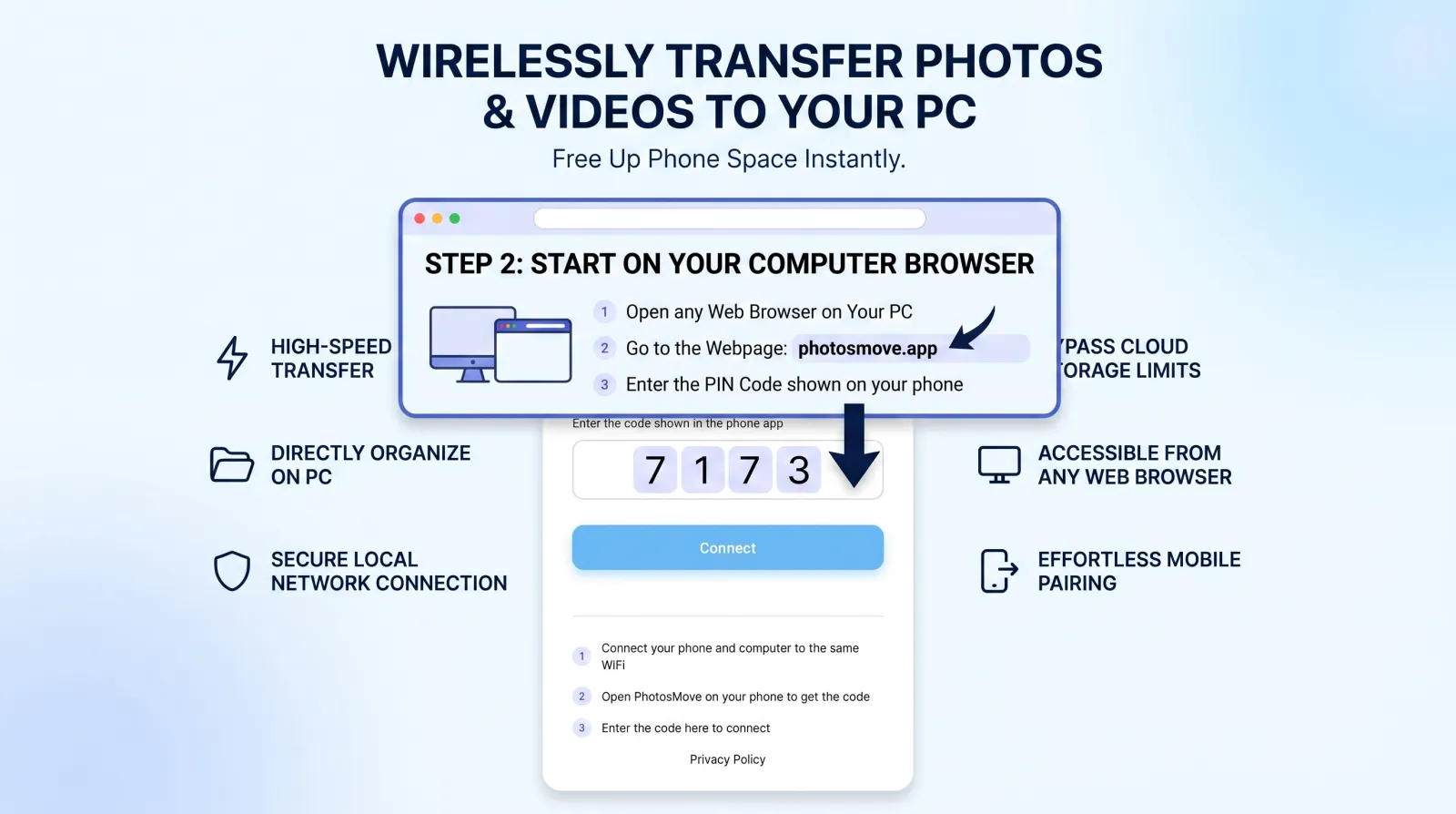
Open the connect page in any browser
Same Wi-Fi, enter the 4-digit PIN from your phone.
-
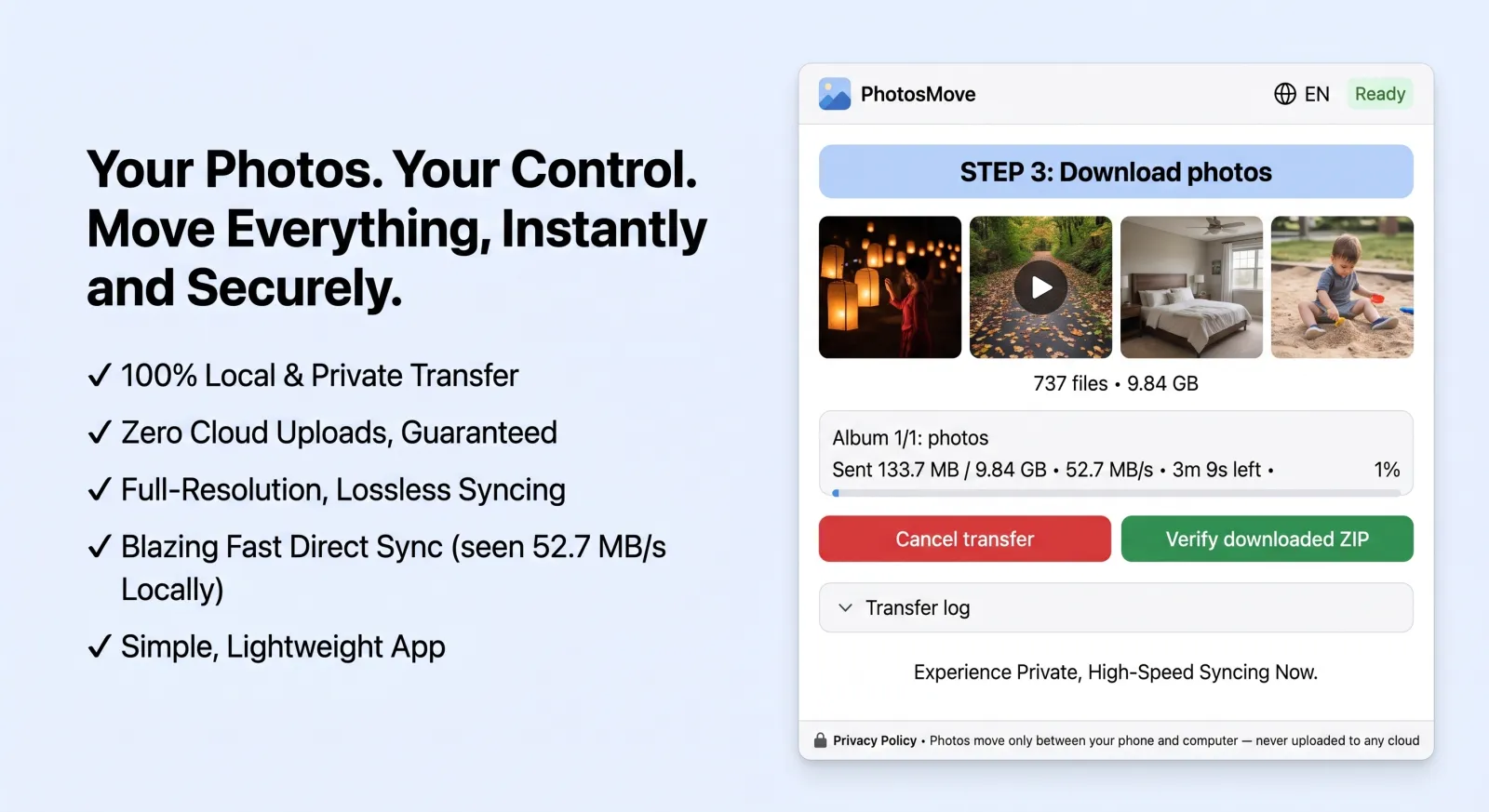
Download one ZIP — ZIP64 streaming
Your clips stream into a single ZIP64 archive; the SHA-256 check confirms nothing was lost.
-
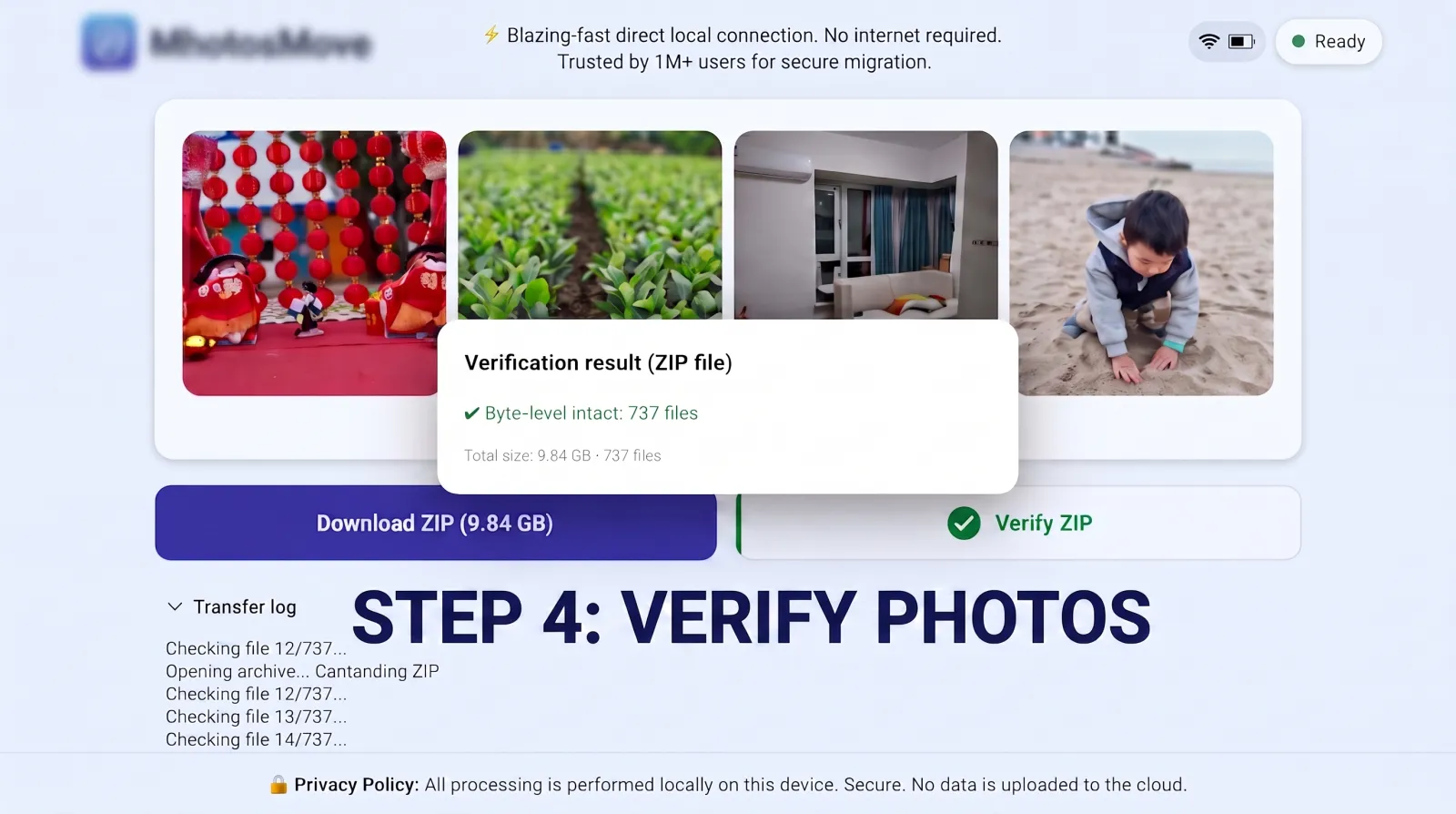
Verify it byte-for-byte
The SHA-256 check runs locally in your browser and confirms every byte of every video arrived intact.
Tips for drone and action-camera footage
- Free space is real. A 10GB clip needs working space on the phone while the ZIP is built. Keep 20–30% free before a big transfer.
- Prefer 5GHz. Big files amplify slow links — put both devices on 5GHz for the fastest session.
- Extract on a fast drive. Unzipping a 50GB archive on a slow external drive takes a while; extract to internal storage first, then move files.
- Check the card format. If footage lives on an SD card and you later copy it elsewhere, keep the target exFAT/NTFS to preserve files above 4GB.
How a streaming ZIP handles a 50GB library
Traditional "create archive, then transfer" tools need enough disk space for the archive plus the originals — on the phone. That's a dealbreaker when your library approaches free storage. A streaming ZIP solves it differently:
- No full archive on the phone. The ZIP is written and transmitted on the fly, file by file, so the phone only holds the data it's currently reading.
- ZIP64 central directory. The archive format tracks file offsets with 64-bit values, so total sizes beyond 4GB (or 65,535 entries) are fine — which is mandatory for drone footage.
- Flat memory footprint. The phone streams file by file with constant memory, so a 50GB library never exhausts the phone — a retry costs exactly the same as the first attempt.
- End-to-end verification. The SHA-256 check runs in the browser against the phone's value, so a corrupted frame or truncated clip is caught while you're still on the network — not months later.
The practical takeaway: one large library, one streaming download, verifiable — the difference between "let's just get it done" and "I hope it didn't corrupt this time".
Frequently asked questions
Can I transfer video files larger than 4GB from Android to PC?
Yes — ZIP64 supports 4GB+ files, and PhotosMove uses it with streaming. MTP or FAT32-formatted media will refuse or corrupt files above 4GB.
What is ZIP64 and why does it matter for video?
Classic ZIP is limited to 4GB per file and 65,535 entries. ZIP64 extends both — required for drone and action-camera footage.
What happens if my Wi-Fi transfer is interrupted mid-download?
If the download is interrupted, the ZIP is incomplete — just start the download again. The built-in SHA-256 check confirms the final file is intact before you trust it.
Why does MTP keep failing on large video files?
MTP has no robust resumption and commonly drops long transfers — a clip failing at 95% starts from zero. A streaming ZIP avoids per-file restart by design.
Move your footage without the 4GB wall.
PhotosMove — free, open source, ZIP64, verified, no cloud.
No account · No cloud · No PC software
Related guides