The short answer
If you're moving your entire library — tens of thousands of photos, tens of gigabytes or more — the most reliable method in 2026 is a local Wi-Fi migration tool: no cable, no cloud upload, no compression, and your folder structure survives. A free open-source option is PhotosMove: start it on your phone, open a browser tab on your PC, enter the PIN, and download one verified ZIP.
If you only need a few photos, a USB cable or Google's Quick Share is perfectly fine. If you already live inside Google Photos and accept its storage trade-offs, the official Takeout export works too — just expect a long wait for large libraries.
Why "transfer photos to PC" is still a real problem in 2026
Phones keep getting better cameras and bigger storage, which means the transfer problem keeps getting bigger too. Three things make it genuinely hard:
- Scale. A 128GB or 256GB phone can hold 30,000–80,000 photos and videos. Copying that over MTP (the USB protocol Android uses) frequently disconnects, freezes, or silently reorders files.
- Formats. Modern phones shoot HEIC, RAW/DNG, and high-bitrate video. Cloud services often recompress or transcode these, so what comes back out is not what left the camera.
- Structure. Albums and folder paths matter when you're organizing years of memories. Quick Share flattens everything into one "Received" pile; cloud galleries re-imagine your structure their own way.
The right method depends on your situation. The table below maps each approach to the scenario it actually fits.
Six ways to transfer photos from Android to PC, compared
The six methods in detail
Method 1 — USB cable (MTP)
Plug the phone into the PC and copy the DCIM folders through File Explorer. Photos move as plain files — no upload, no quality loss.
- Pros: Fast for big libraries; works without internet; keeps originals as stored.
- Cons: Charge-only cables and driver issues are common; MTP drops mid-copy on large batches and restarts from zero; no integrity check to catch silent truncation.
Method 2 — Google Photos
Back up on the phone, then download from photos.google.com on the PC.
- Pros: Automatic and continuous; works from anywhere; doubles as off-device backup.
- Cons: "Storage saver" recompresses files and drops metadata; original quality eats your Google quota; a full-library upload can take days; your photos leave your network.
Method 3 — Quick Share (Windows)
Samsung's and Google's Quick Share apps for Windows receive files from the phone over Wi-Fi.
- Pros: Built into Samsung and Pixel phones; no cable; quick for a handful of files.
- Cons: Requires the Quick Share app on the PC; selecting whole albums at scale is tedious; no folder structure, no integrity check.
Method 4 — Desktop software (vendor suites)
Samsung Smart Switch, Xiaomi's suite and similar vendor apps import photos over USB or Wi-Fi.
- Pros: Polished one-click import; often handles contacts and messages too.
- Cons: Brand-locked (Smart Switch won't help a Pixel); PC software you didn't ask for; imports are sometimes reorganized or converted; no checksum.
Method 5 — Photo Transfer App (local Wi-Fi)
Photo Transfer App is a commercial transfer app for iPhone, Android, Mac and Windows, with a browser mode for the PC side.
- Pros: Polished apps on every platform, including iPhone; transfers over local Wi-Fi with originals and EXIF kept; no account needed.
- Cons: The free tier caps each batch at 5 items and shows ads; unlimited transfers and cloud backup require a PRO subscription; closed source; album-based transfers don't preserve your DCIM folder structure.
Method 6 — PhotosMove (local Wi-Fi)
PhotosMove runs a tiny server on your phone; open a browser tab on the PC, enter the PIN, and download your whole library as one ZIP64 with a SHA-256 verification.
- Pros: Nothing to install on the PC; byte-perfect originals with EXIF intact; keeps album folders; reliable at 100GB+; everything stays on your network.
- Cons: Phone and PC must share the same Wi-Fi; results arrive as one ZIP you unzip once.
If you want a local Wi-Fi solution with no PC software and no cloud upload, PhotosMove is designed for this use case.
If you picked PhotosMove, here is the three-step flow.
How to transfer photos from Android to PC with PhotosMove
-
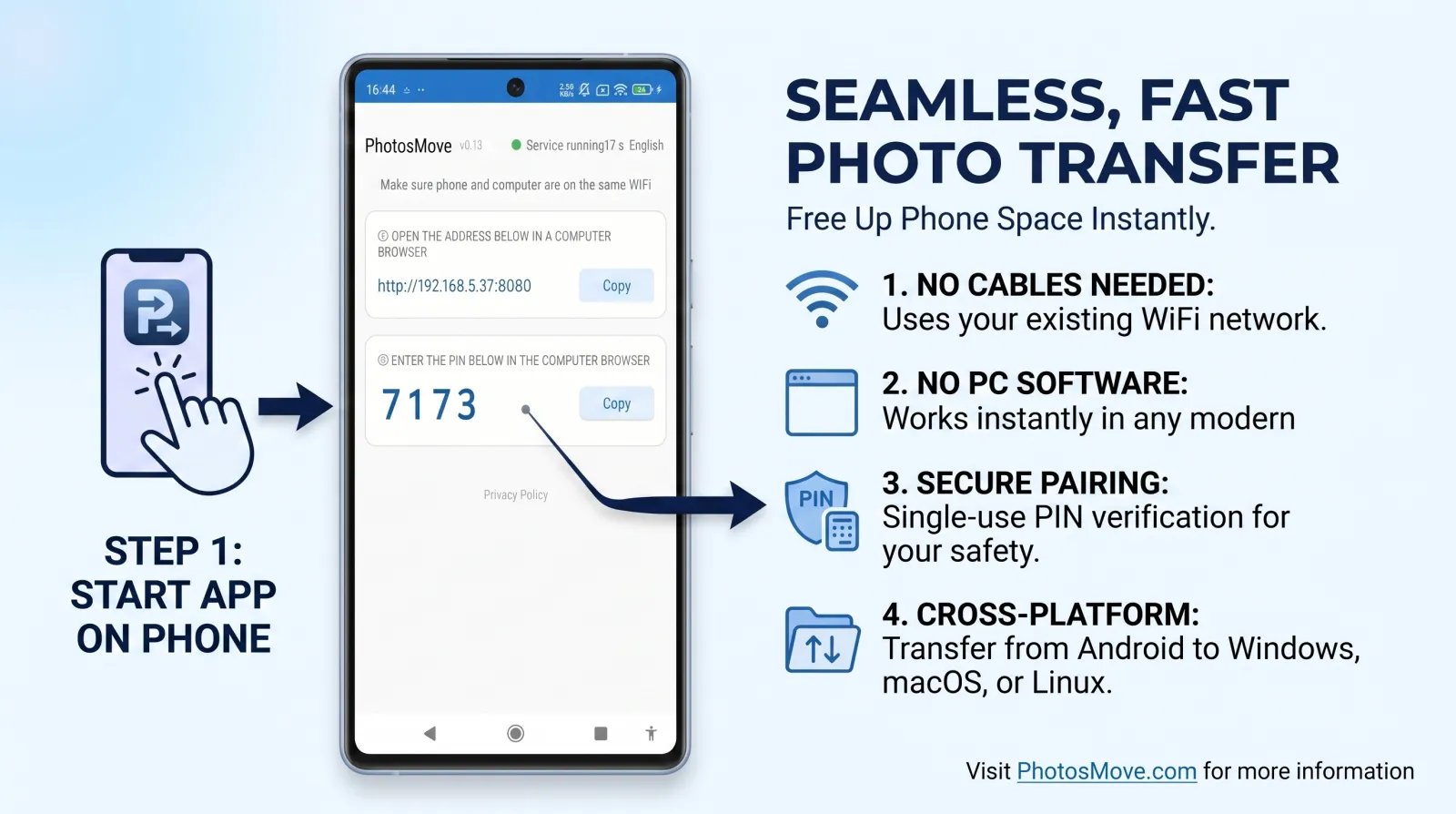
Start the app on your phone
Install PhotosMove from Google Play (or the APK on GitHub), open it, and tap start. A local server begins running on your phone — no account, no setup.
-
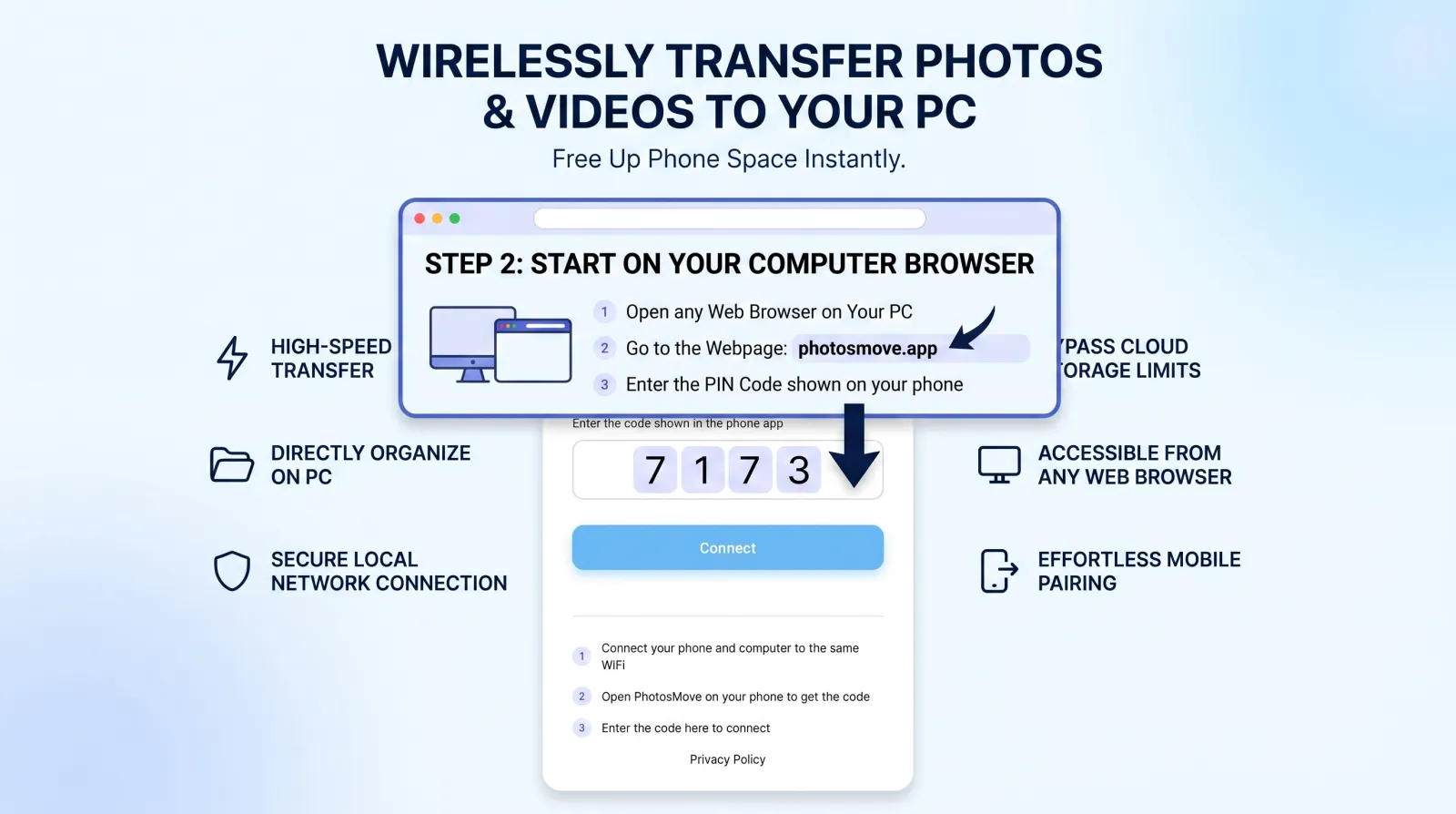
Open the connect page in any browser
On the same Wi-Fi, open the address shown in the app on your computer and enter the 4-digit PIN.
-
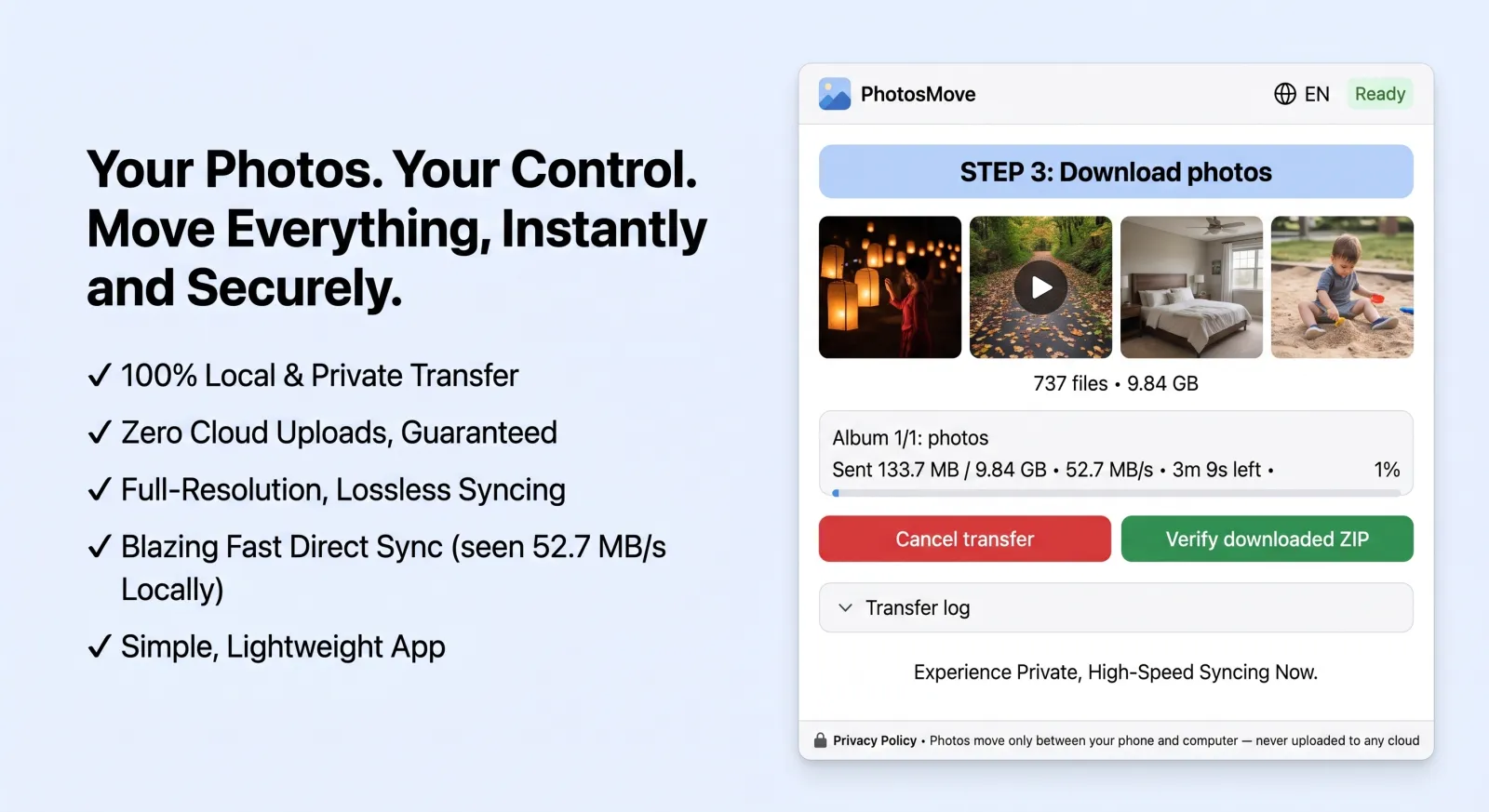
Download one ZIP — your entire library at once
Download a single streaming ZIP. A SHA-256 check runs locally in your browser, so you know every file arrived intact.
-
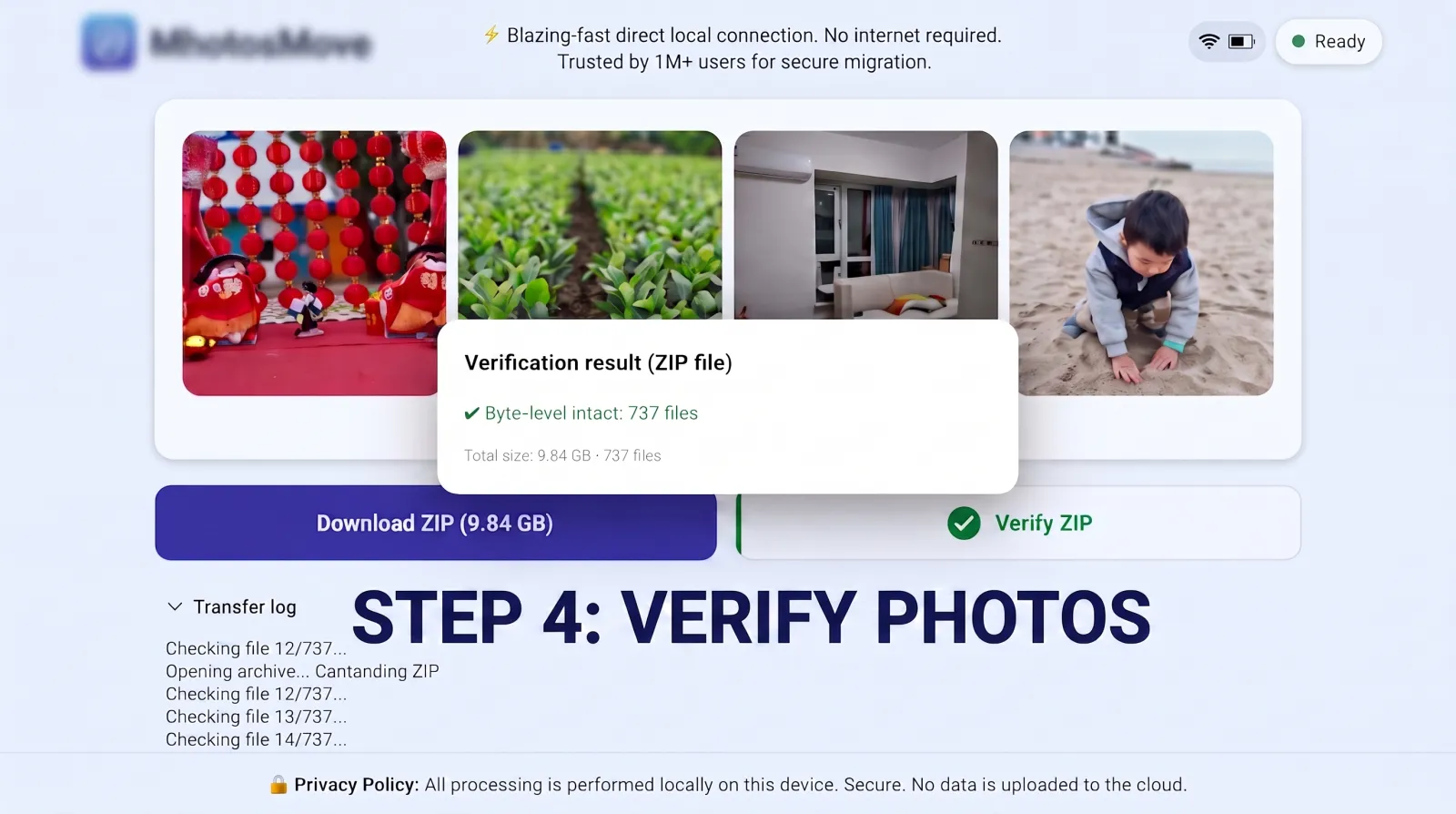
Verify it byte-for-byte
PhotosMove computes a SHA-256 checksum locally in your browser and compares it with the transfer manifest — green means every file arrived byte-perfect.
Things to watch out for with any method
- MTP disconnects. If you use USB, expect the connection to drop on very large libraries. Copy in smaller batches and keep an eye on the transfer.
- Silent compression. Cloud backup at "storage saver" quality re-encodes your photos. RAW, HEIC and ProRes files lose quality or get rejected entirely.
- Lost folder structure. Quick Share flattens albums into one received pile. If you care about organization, pick a method that preserves paths.
- Free space on the phone. Before a big migration, make sure you have room for the ZIP that gets built on-device; PhotosMove streams it, but your phone still needs working space.
- Privacy. Anything that goes through a third-party cloud touches someone else's servers. A fully local transfer never leaves your Wi-Fi.
Frequently asked questions
What is the best way to transfer photos from Android to PC?
For a full library, a local Wi-Fi migration tool like PhotosMove is the most reliable — no cable, no cloud, no compression, folder structure preserved. For a few files, USB or Quick Share are fine.
Why is USB transfer so slow for photos?
Android exposes storage over MTP, which works for small batches but becomes slow and unstable at scale — disconnects, freezes and lost file order are common when copying 100,000+ files.
Does Google Photos compress my photos?
Storage saver quality recompresses photos and transcodes videos. Original quality avoids this but counts against your storage quota.
Can I transfer 100GB+ of photos in one go?
Yes. PhotosMove streams a single ZIP with ZIP64 support, so large libraries download as one file with a local SHA-256 verification.
Do I need to install software on my PC?
With PhotosMove, no — the receiving side is any modern browser on Windows, macOS or Linux.
Need to move your entire library?
Try PhotosMove — free, open source, and your photos never leave your Wi-Fi.
No account · No cloud · No PC software
More guides in this series