The short answer
Transfer the originals straight from your phone to your PC over Wi-Fi with a tool like PhotosMove — start it on the phone, open a browser tab on the PC, enter the PIN, and download one verified ZIP. You get byte-perfect originals with your folder structure intact, and you can then delete Google Photos from the equation (or from your phone) with full confidence.
Why people want out of Google Photos
- The compression controversy. "Storage saver" quality recompresses JPEGs and transcodes videos. Google's own docs say it — once recompressed, the original is gone. RAW and high-bitrate video may not even be uploaded.
- Storage costs. Original quality counts against your 15GB quota, and libraries fill it fast. Paid tiers are the only way to keep originals.
- Structure is remixed. Your albums become Google's organization, not your folders. Exporting gives you metadata sidecars instead of your familiar DCIM/Pictures layout.
- Privacy. Photos live on someone else's servers, scanned and used for features you may not want.
The problem with Google Takeout as an exit path
Google Takeout is the official export tool, and it works — with three caveats that matter for a real photo library:
- It exports what's already there. If your photos were backed up in storage-saver quality, Takeout hands you the compressed versions. There is no way to reconstruct originals from compressed copies.
- It's slow at scale. Large libraries are split into many ZIP parts that can take hours to days to prepare, and you must download and unzip every part.
- Structure becomes metadata. Albums come out as JSON sidecar files next to photos, not as clean folders. Rebuilding your organization means scripting or manual work.
Takeout is still the right tool if you want a copy of what's in your Google account (for example, to archive before closing it). For moving your actual photos to your PC, a direct transfer is simpler and lossless.
Methods compared: getting photos to your PC without Google Photos
The methods in detail
Method 1 — Google Takeout
Export your Google Photos archive via takeout.google.com and download the ZIP parts.
- Pros: Official and complete for what's in your account; no third-party tools; includes edits and album metadata.
- Cons: Hands back compressed copies if you ever used storage saver; hours-to-days preparation for big libraries; JSON sidecars instead of clean folders; lost originals can't be recovered.
Method 2 — USB copy (MTP)
Plug in and copy the DCIM/Pictures folders straight off the device.
- Pros: Fully local; originals as stored; no accounts involved at all.
- Cons: MTP is fragile on large batches — drops mid-copy and restarts from zero; folder structure depends on what apps wrote where; no verification.
Method 3 — Another cloud (OneDrive, Dropbox, …)
Swap Google for a different sync service and let it back up your phone.
- Pros: Continuous backup; multi-device access; familiar sync workflow.
- Cons: The same trade-offs that pushed you out of Google Photos — compression policies, quota, and your library still on someone else's servers; only photos taken after setup get backed up.
Method 4 — PhotosMove (direct local transfer)
PhotosMove moves the originals from your phone to your PC over local Wi-Fi — no Google account in the loop at any point.
- Pros: Byte-perfect originals with your folder structure; SHA-256 verification; nothing to install on the PC; 100GB+ libraries in one pass; stays on your network.
- Cons: A one-time move rather than continuous backup; phone and PC must share Wi-Fi.
If you want a local Wi-Fi solution with no PC software and no cloud upload, PhotosMove is designed for this use case.
How to transfer your photos to PC directly (PhotosMove)
-
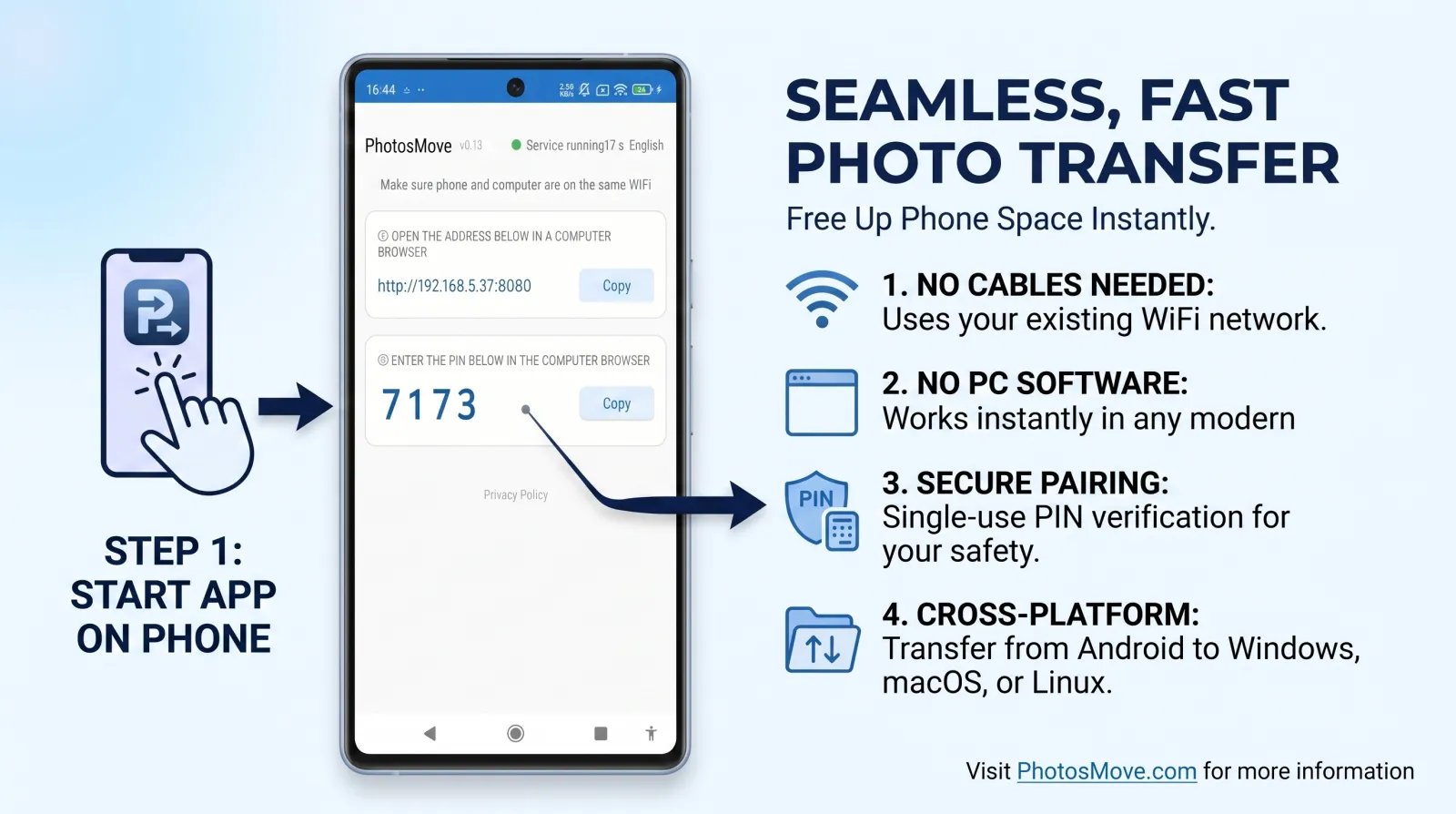
Start the app on your phone
Install PhotosMove and tap start. Your phone serves your albums over the local network — no Google account involved.
-
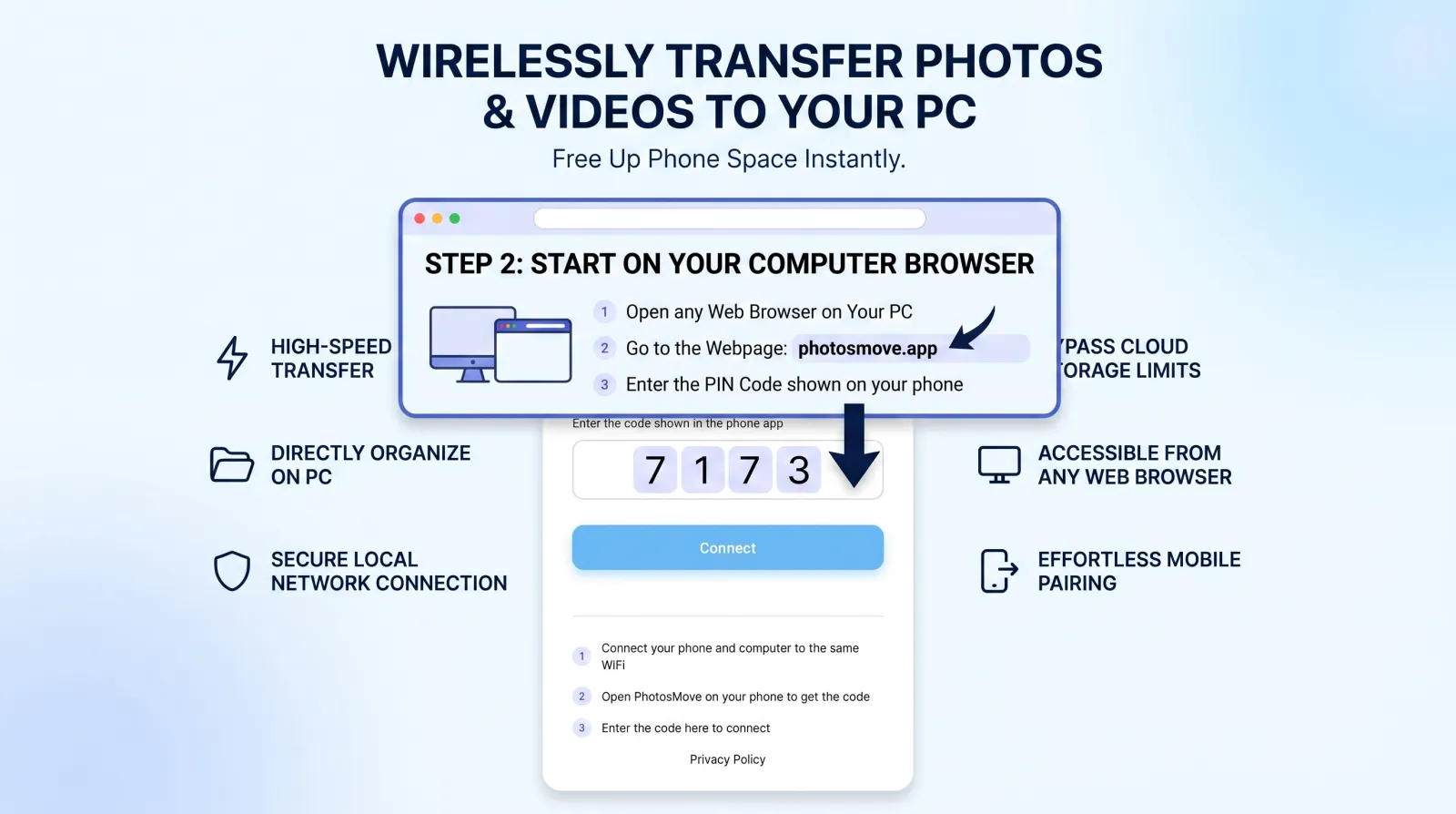
Open the connect page in any browser
On the PC, open the address shown in the app and enter the 4-digit PIN.
-
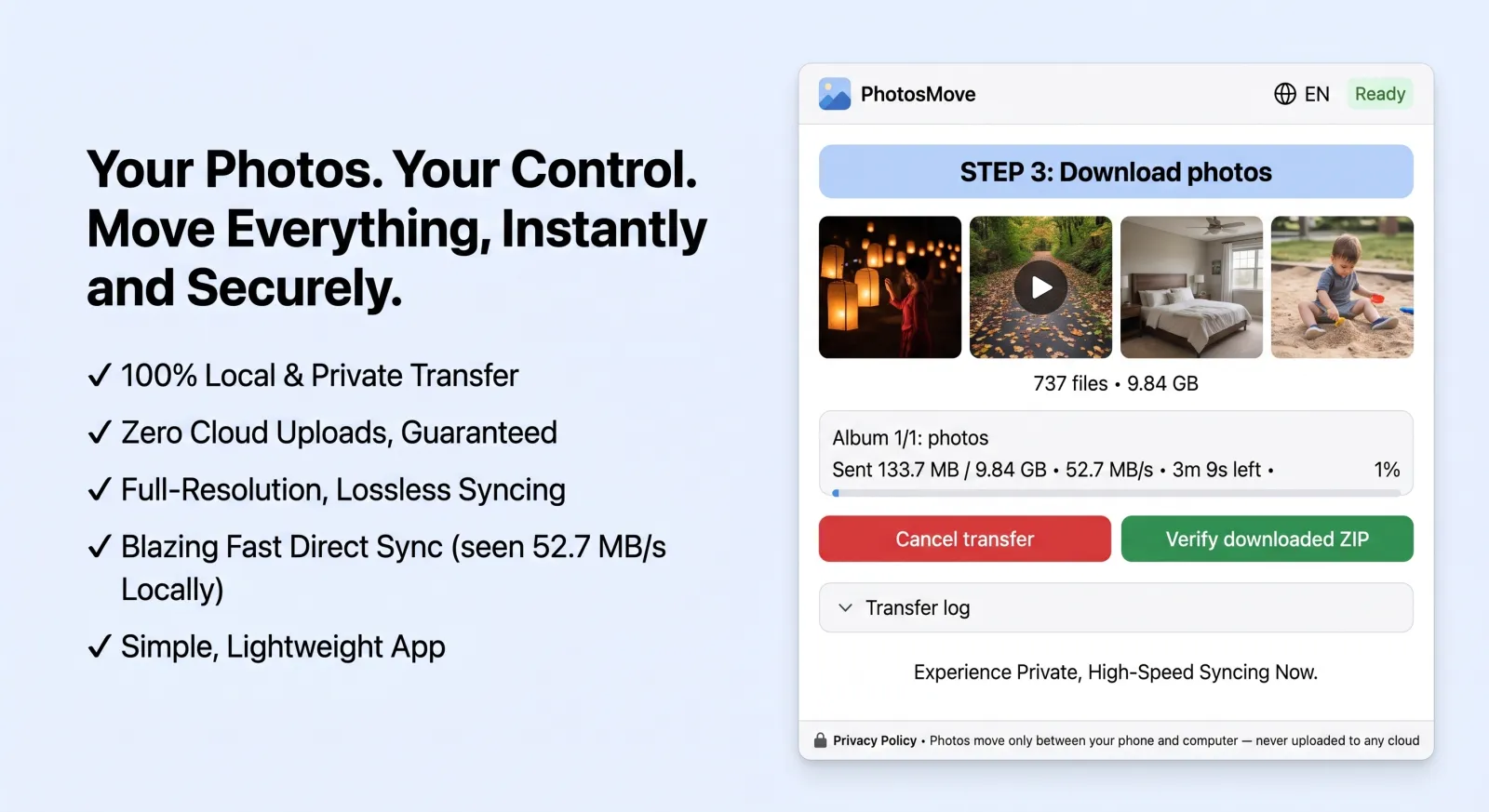
Download one ZIP — your entire library at once
One click downloads the streaming ZIP, and let the local SHA-256 check confirm the originals arrived intact.
-
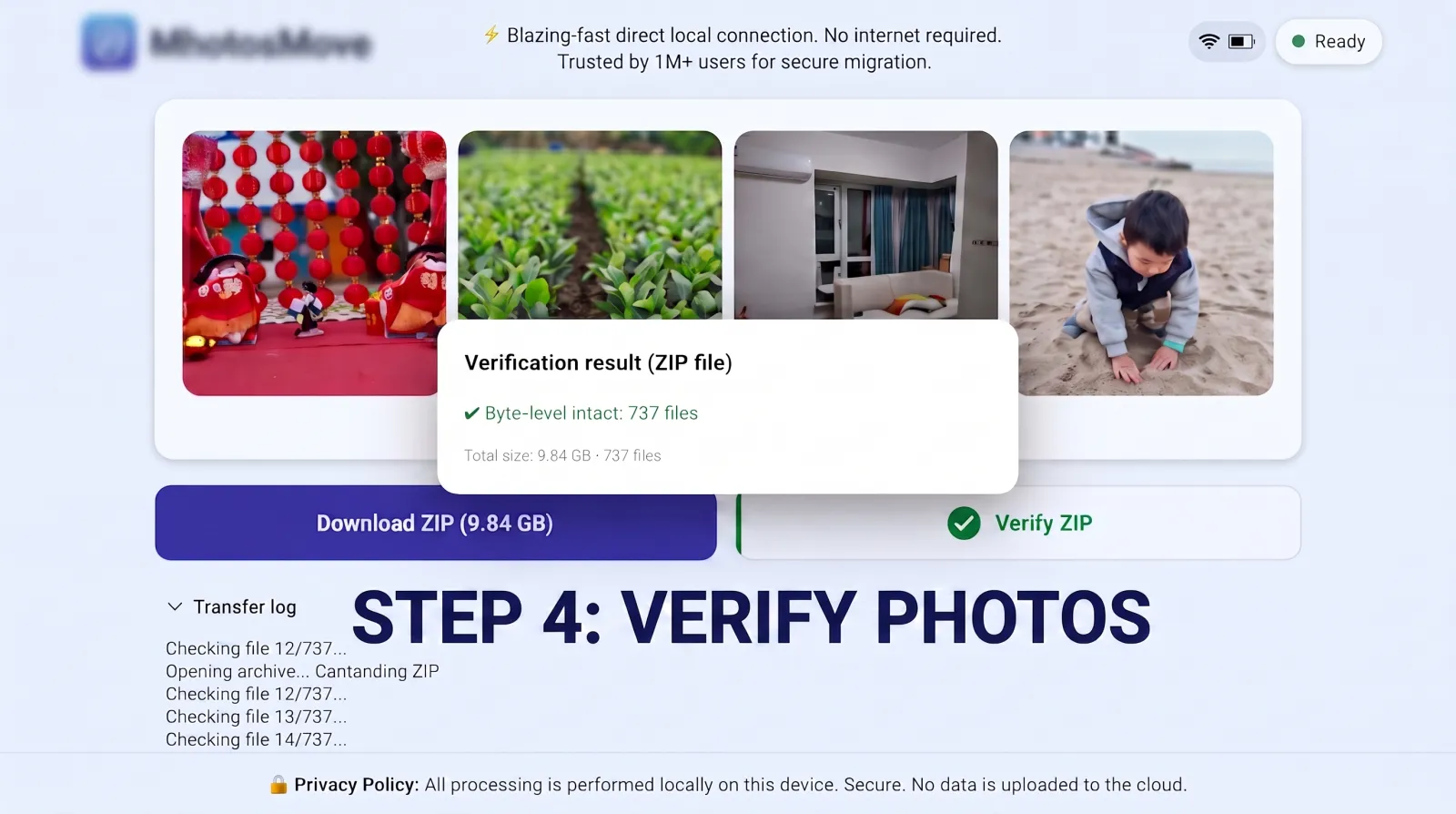
Verify it byte-for-byte
PhotosMove computes a SHA-256 checksum locally in your browser and compares it with the transfer manifest — green means every file arrived byte-perfect.
What to do after you have your photos on the PC
- Verify before deleting anything. Confirm the SHA-256 checks passed, then spot-open a few photos and RAW files.
- Optionally export your Google archive first. If you want a record of what's in your account, run Takeout before you cancel the subscription or clear the library.
- Stop the backup. Turn off Google Photos backup, or disable backup & sync, so new photos stop being uploaded while you transition.
- Keep a local backup. A library that exists only on your PC has a single point of failure. Add a second drive or follow a 3-2-1 approach — see our backup guide.
Frequently asked questions
Does Google Photos Takeout compress my photos?
Takeout exports whatever Google currently stores. If you backed up in storage-saver quality, those files were already recompressed — Takeout can't restore the originals.
How long does Takeout take for a large library?
Preparing the export can take hours to days for tens of thousands of photos, and the download arrives as many ZIP parts that all have to be downloaded and unzipped.
If I stop using Google Photos, are the photos still on my phone?
Yes — unless you used "free up space", which removes local copies of backed-up items. A direct transfer works from what's still on the device.
Can I keep my folder structure when leaving Google Photos?
Takeout restructures albums into JSON metadata sidecars. A direct transfer like PhotosMove keeps your DCIM/Pictures layout exactly as it is on the phone.
Done with the cloud? Move your originals home.
PhotosMove — free, open source, byte-perfect, and your photos never leave your Wi-Fi.
No account · No cloud · No PC software
Related guides