The short answer
Transfer HEIC files as-is with a byte-perfect tool like PhotosMove — no conversion, no recompression, EXIF and GPS intact. If your PC can't open HEIC, install the free HEIF/HEVC extensions on Windows (macOS handles it natively), and only convert copies to JPG for specific uses like sharing or old software.
HEIC in one paragraph
HEIC (High Efficiency Image Coding) is the modern image format that Android phones and iPhones shoot by default. It stores the same image at roughly half the size of JPEG, supports 10-bit color, and can bundle depth maps and Live Photo data. The catch is compatibility: Windows needs a codec, some Linux setups need a package, and many web services still transcode or reject it.
Converting vs. keeping the original
| Decision | Keep HEIC original | Convert to JPG |
|---|
| Quality | exactly as shot | recompressed (lossy) |
|---|
| EXIF / GPS | fully preserved | often dropped by converters |
|---|
| Live Photo / depth data | preserved | lost |
|---|
| File size | ~half of JPEG | larger for same quality |
|---|
| Compatibility | needs codec on Windows | works everywhere |
|---|
The robust strategy: archive the HEIC originals (byte-perfect, on your PC) and generate JPG copies only when a specific service or app demands them. You never lose the source.
Methods for moving HEIC to your PC, compared
The methods in detail
Method 1 — USB cable (MTP)
Copy the DCIM folder over USB; the files arrive as stored, HEIC included.
- Pros: No re-encoding — HEIC and EXIF survive intact; fast for big libraries.
- Cons: MTP connections can drop mid-copy with no checksum to catch it; charge-only cables and driver issues; partial transfers are hard to spot.
Method 2 — Cloud backup (Google Photos / OneDrive)
Let the cloud app upload, then download on the PC.
- Pros: Automatic; convenient for small libraries; includes an off-site copy.
- Cons: Many pipelines transcode HEIC to JPEG or strip metadata; slow at scale; quota costs; originals no longer under your control.
Method 3 — Email / chat apps
Send photos to yourself via WhatsApp, Telegram, WeChat or email.
- Pros: Instant for one or two images you need right now.
- Cons: Chat apps routinely re-compress and strip EXIF; tiny batch sizes; attachment limits; a full-library move is impossible this way.
Method 4 — PhotosMove (local Wi-Fi)
Transfer HEIC byte-for-byte over local Wi-Fi into one ZIP, verified with SHA-256.
- Pros: HEIC originals untouched — EXIF, GPS and depth data intact; keeps album folders; nothing to install on the PC; built-in integrity check.
- Cons: Same-Wi-Fi requirement; your PC still needs the free HEIF codec to preview HEIC — a format property, not a transfer issue.
If you want a local Wi-Fi solution with no PC software and no cloud upload, PhotosMove is designed for this use case.
How to transfer HEIC photos from Android to PC (PhotosMove)
-
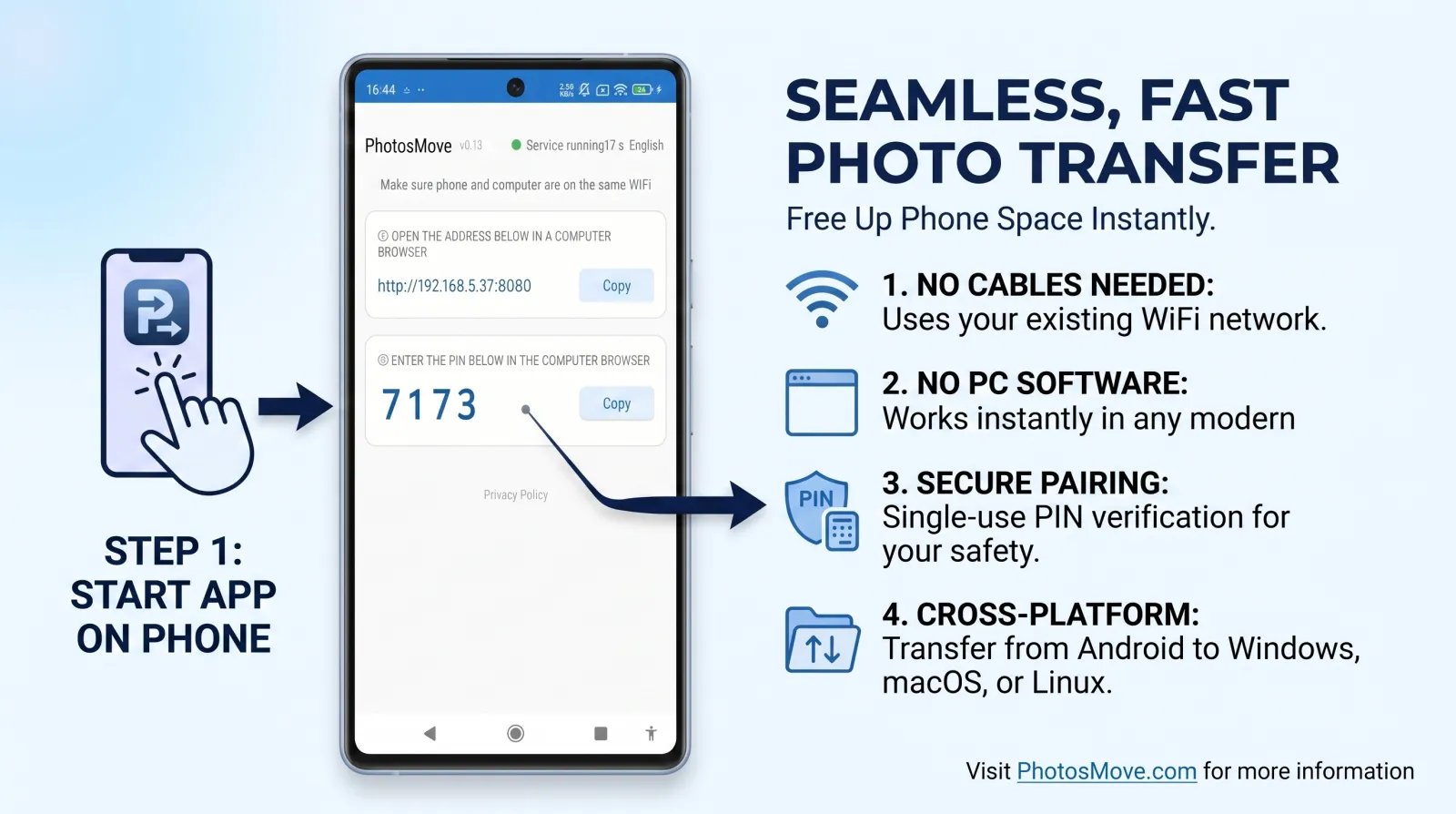
Start the app on your phone
Install PhotosMove and tap start. HEIC files are included exactly as stored on the device.
-
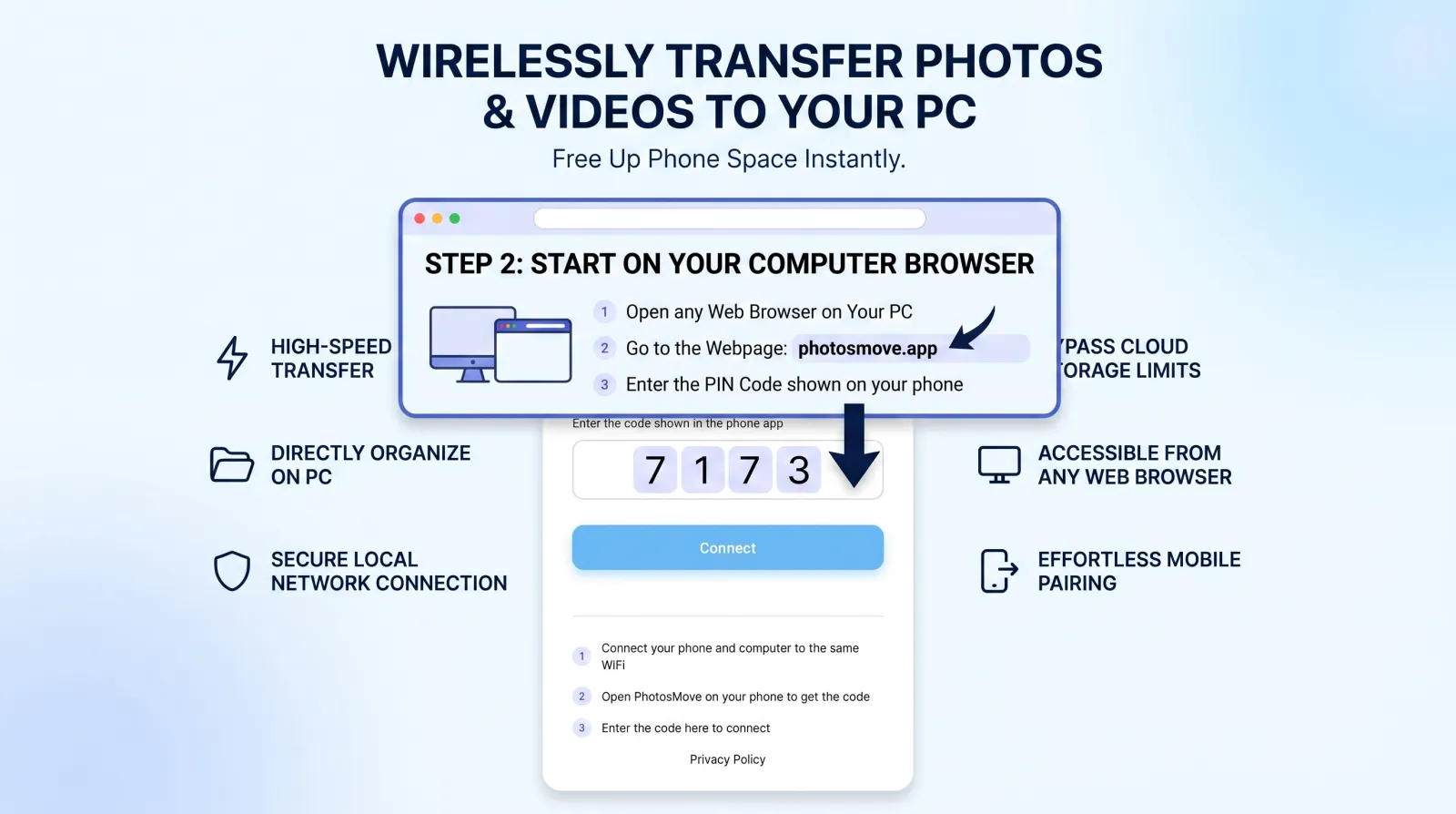
Open the connect page in any browser
Same Wi-Fi, enter the 4-digit PIN from your phone.
-
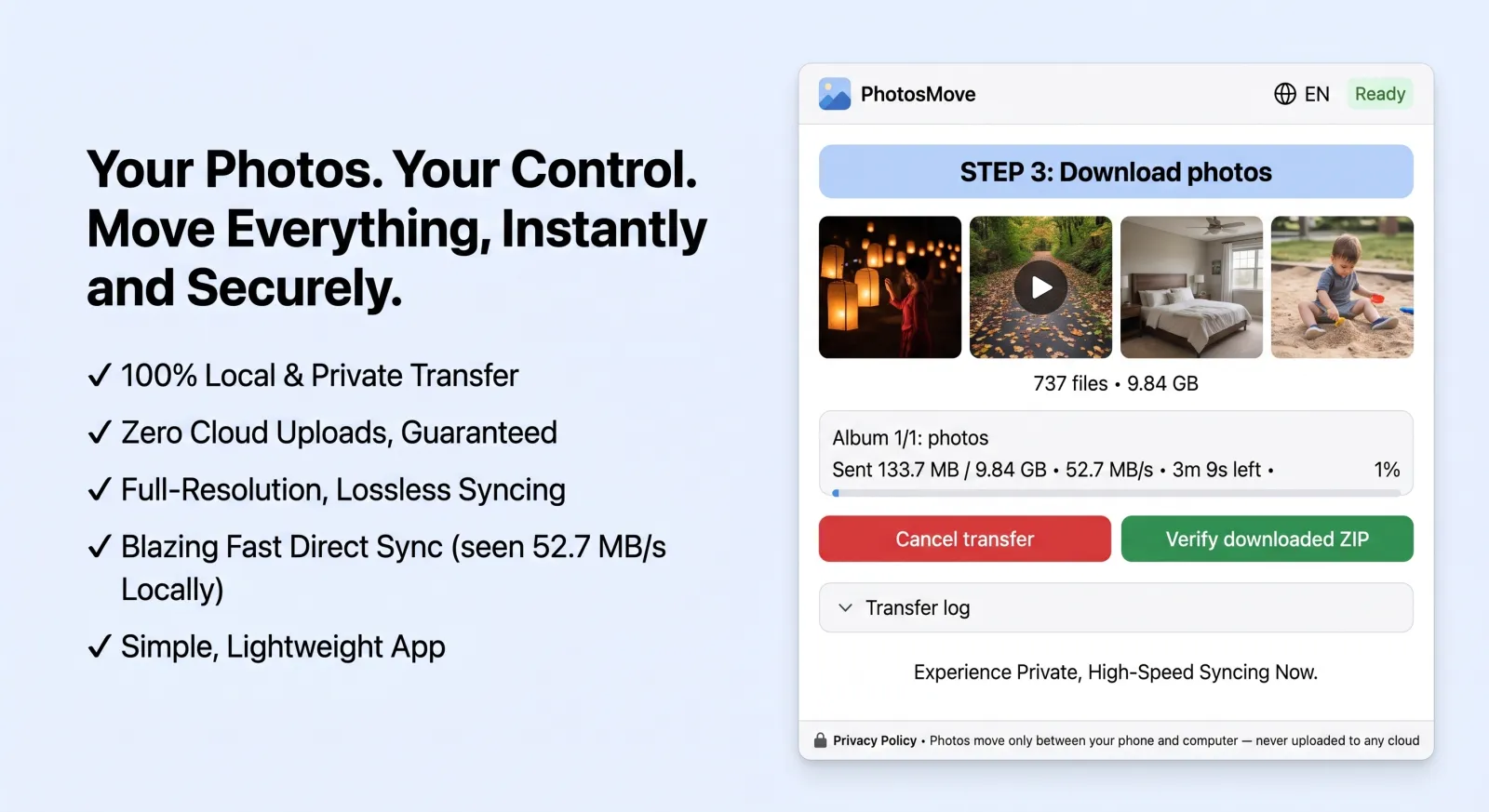
Download one ZIP — your entire library at once
The streaming ZIP contains your HEIC originals; the SHA-256 check confirms nothing was touched.
-
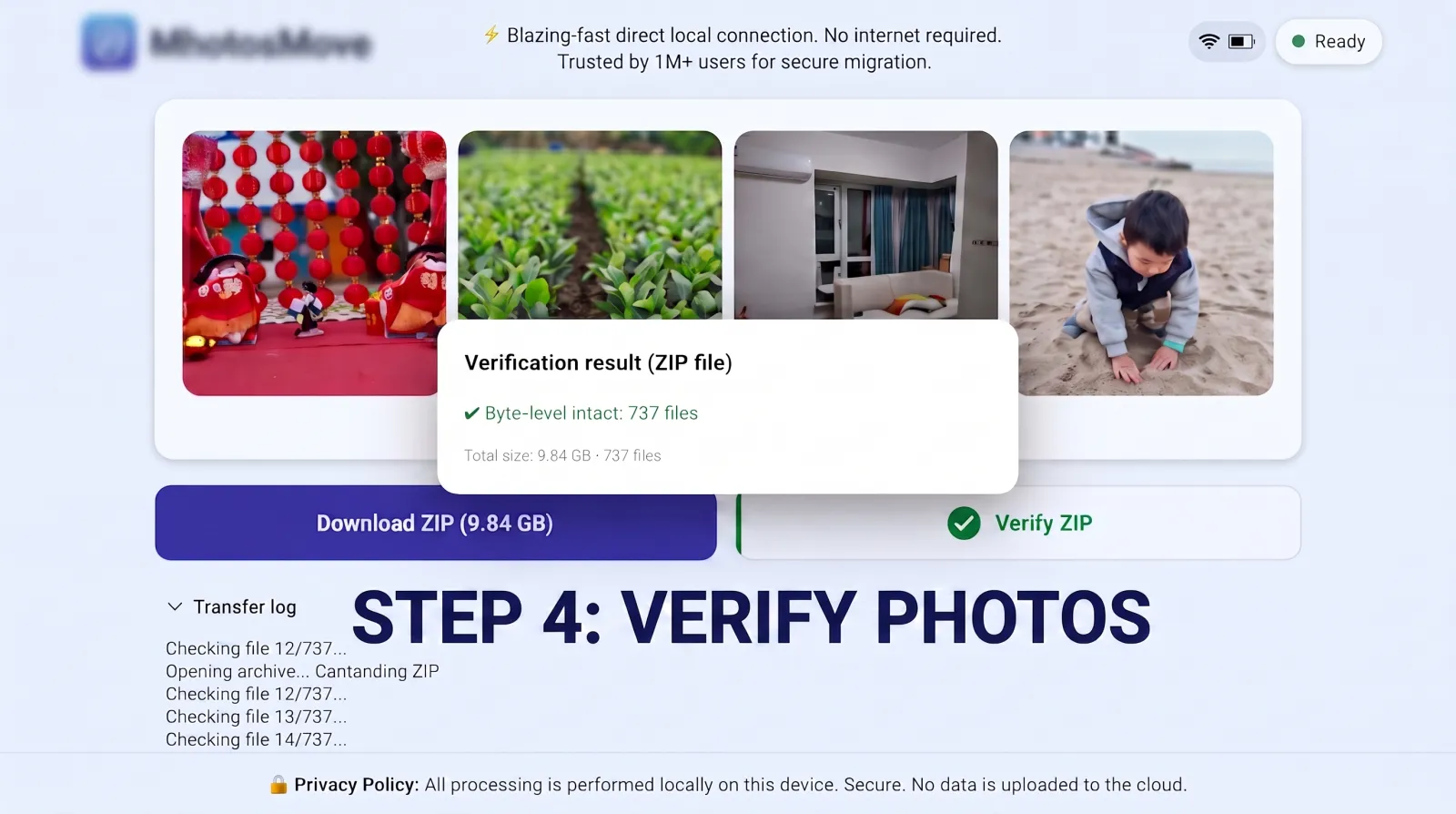
Verify it byte-for-byte
PhotosMove computes a SHA-256 checksum locally in your browser and compares it with the transfer manifest — green means every file arrived byte-perfect.
Making HEIC usable on your PC
- Windows: install the free HEIF Image Extensions and HEVC Video Extensions from the Microsoft Store, then Photos and Explorer open HEIC normally.
- macOS: nothing needed — HEIC is native since High Sierra.
- Linux: install a HEIF codec (e.g.
libheif / heif-convert) for the viewers you use.
- Old software: convert copies with a metadata-aware tool (e.g. ImageMagick with
-define heic:preserve-orientation), never the original.
What EXIF actually is (and why it's worth protecting)
EXIF is the metadata block baked into every camera image: capture date and time, GPS coordinates, camera model, lens and exposure settings, orientation, and thumbnails. It's what lets your library sort photos by date, show them on a map, and rotate them correctly — and it's also what many converters silently strip.
Three practical consequences:
- Date and GPS loss breaks organization. Without capture timestamps, your photos sort by "file modified" time (i.e., when you transferred or converted them) — useless for finding "summer 2024".
- Orientation is fragile. A converter that ignores the orientation tag produces sideways photos even though the pixels are fine.
- Raw conversion is a one-way door. Once a HEIC is converted to an 8-bit JPEG, the extra bit depth and any HEIC-only data are gone permanently. Keeping the HEIC original means you always have the source to re-export from.
So: transfer HEIC as-is for your archive, and convert copies only where compatibility demands it — never as your only copy.
Frequently asked questions
Can Windows open HEIC photos?
Not out of the box. Windows 10/11 need the free HEIF and HEVC extensions from the Microsoft Store. macOS has native HEIC support since High Sierra.
Does converting HEIC to JPG lose EXIF data?
It can. Many converters drop GPS, orientation, camera and timestamp metadata, and some recompress the image. Keep the HEIC original; convert only copies.
Will transferring HEIC as-is keep the original quality?
Yes — a byte-perfect transfer keeps the HEIC exactly as the camera produced it, EXIF and Live Photo data included.
Why do some services reject or recompress my HEIC files?
Older services don't support HEIC and either reject it or transcode it, losing quality and metadata. A local HEIC original protects you from that.
Keep your HEIC originals exactly as shot.
PhotosMove — free, open source, byte-perfect, no cloud.
No account · No cloud · No PC software
Related guides