The short answer
For photos, videos and other media, install PhotosMove on your Android phone, start it, open the shown address in a browser on your PC, and download your files as one verified ZIP — folder structure preserved, no cloud, no drivers. For occasional non-media files (a document, an APK, a song), USB or Quick Share are perfectly fine.
Match the tool to the job
Not every transfer is the same. The right tool depends on what you're moving and how much:
- Your photo and video library (thousands of files, GBs to 100GB+): a dedicated local transfer like PhotosMove. Handles scale, preserves structure, verifies integrity.
- A handful of photos to a nearby Windows PC: Quick Share is convenient — install the app on Windows, send, done.
- One or two odd files (APK, PDF, music): USB cable drag-and-drop or emailing yourself works.
- A cloud backup you actually want: Google Photos / OneDrive — accepting upload time, quota and compression trade-offs.
Why the browser is the best receiver
Every classic transfer method needs something on the PC: a driver (MTP), an installed client (Quick Share, sync apps), or a special cable (OTG readers). A browser-based receiver needs nothing — any modern browser on Windows, macOS or Linux can receive. That also means your friend's PC, a work laptop, or a shared computer can receive files without installing anything.
Methods for Android to PC file transfer, compared
How to transfer files from Android to PC (PhotosMove)
-
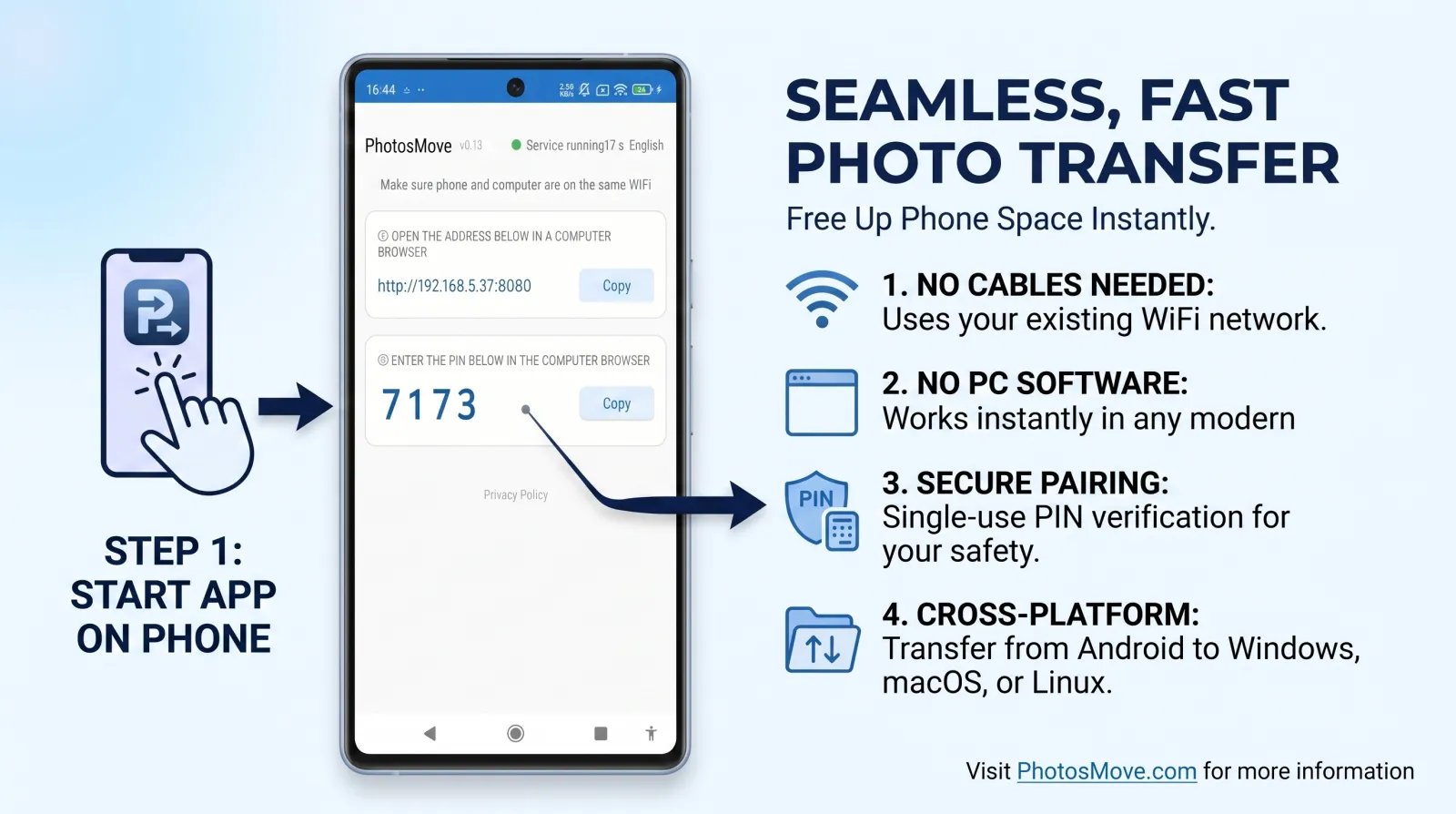
Start the app on your phone
Install PhotosMove and tap start. Your media becomes available on the local network.
-
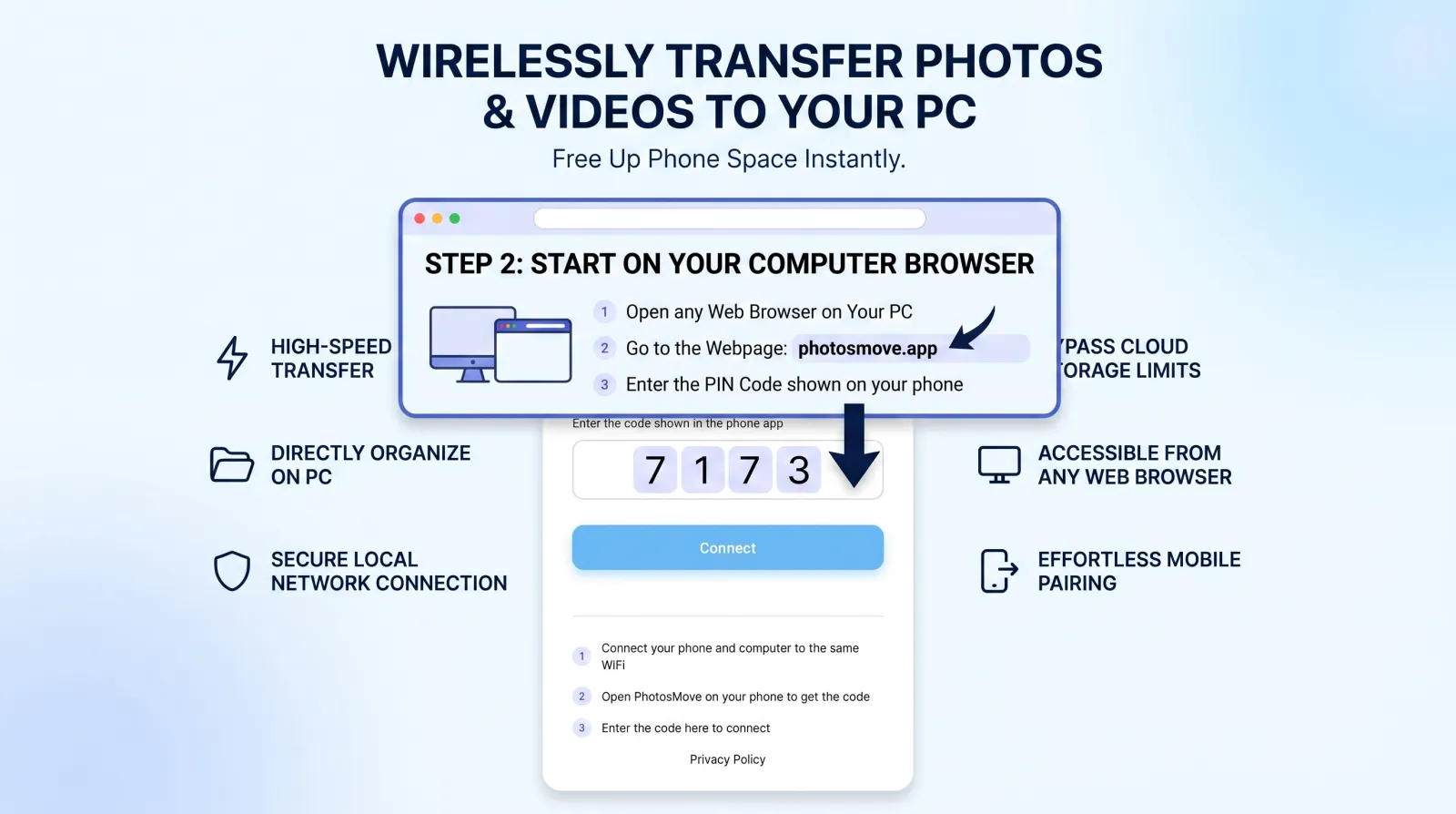
Open the connect page in any browser
Same Wi-Fi, enter the 4-digit PIN from your phone.
-
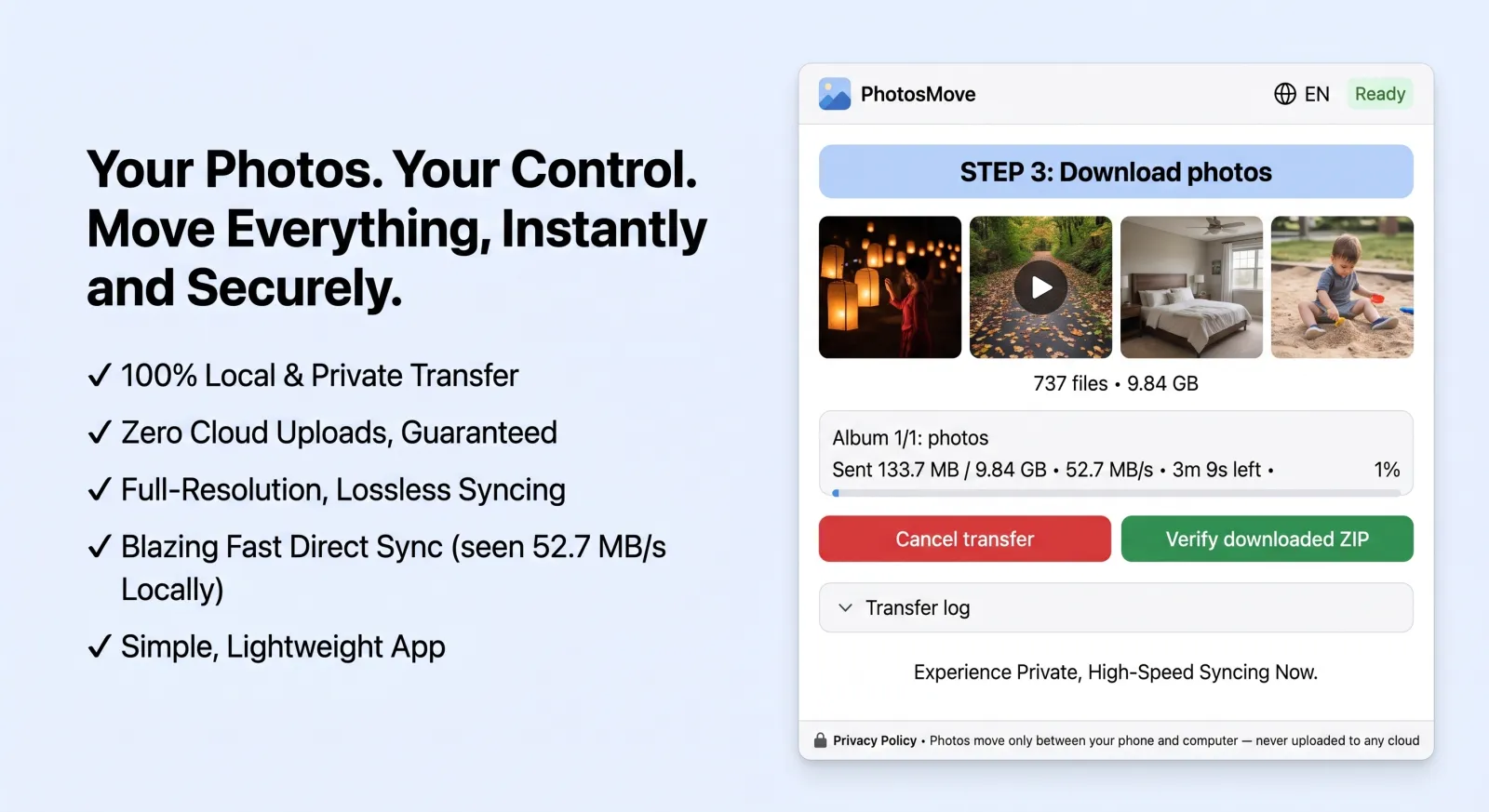
Download one ZIP — your entire library at once
One click, download the streaming ZIP, and let the SHA-256 check confirm everything arrived.
-
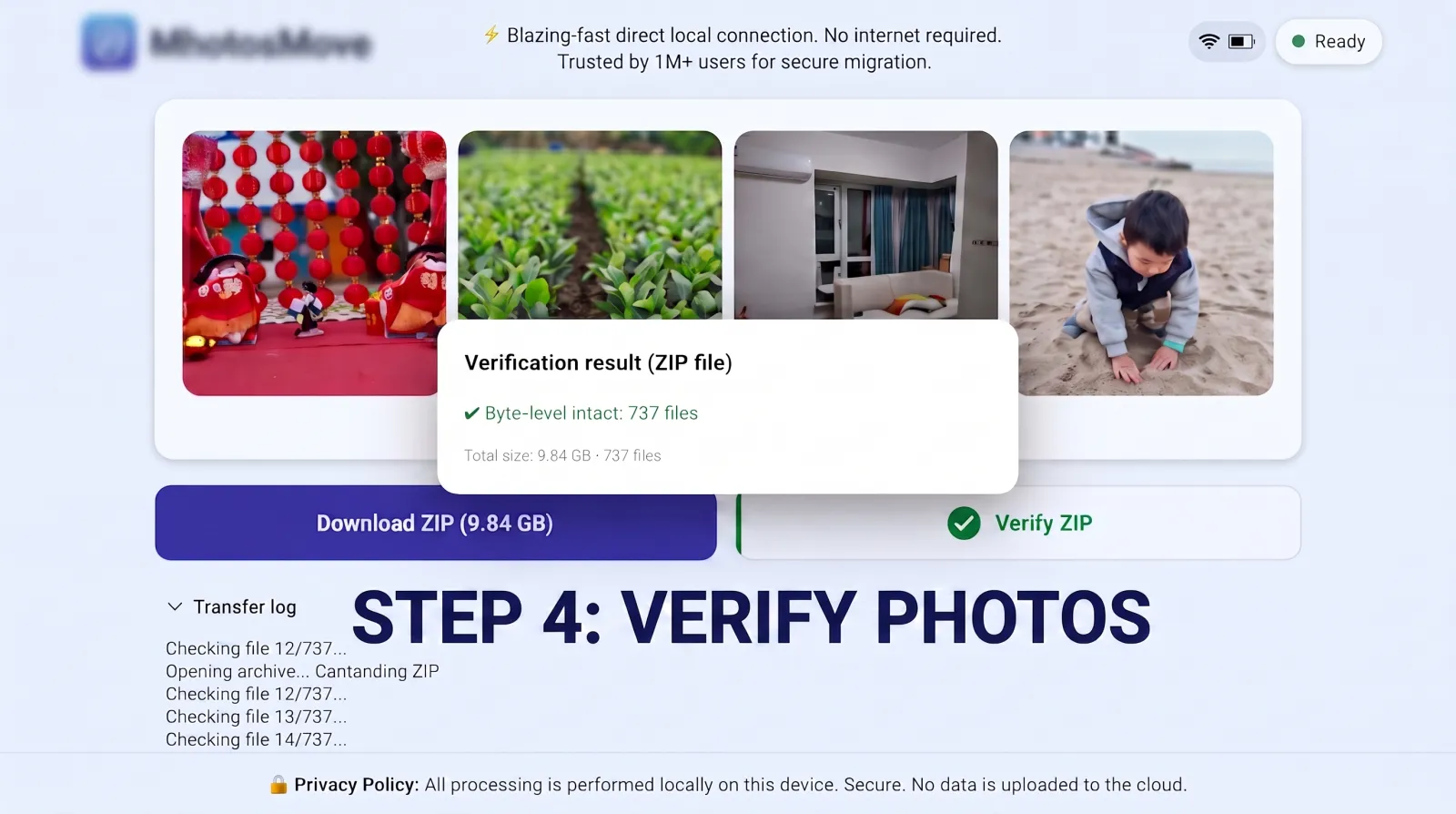
Verify it byte-for-byte
PhotosMove computes a SHA-256 checksum locally in your browser and compares it with the transfer manifest — green means every file arrived byte-perfect.
Honest scope: what PhotosMove covers
PhotosMove is built for media migration: photos (JPG, HEIC, RAW/DNG), videos (MP4, MOV, GoPro/DJI footage) and Live Photos, with EXIF/GPS intact. It's the right tool when the bulk of what you want off the phone is your photo and video library. For the occasional document, APK or music file, keep USB or Quick Share around — and for long-term cloud backup, pair any of the above with a proper 3-2-1 strategy.
A 30-second decision flow
Not sure which tool to reach for? Run down this list:
- Moving photos, videos, or a whole media library? Use PhotosMove — it's built for exactly this, at any size, with verification.
- Just a few photos, and both devices are nearby? Quick Share (or USB) is fine — don't over-engineer it.
- A single odd file (APK, PDF, song)? USB drag-and-drop or emailing it to yourself beats any setup.
- Want continuous automatic backup? That's a cloud-sync job (or a NAS job) — pair it with a local copy so you're not dependent on one service.
The common mistake is reaching for the "familiar" tool — usually USB or a cloud app — when the job is actually a whole-library transfer, then paying for it with MTP failures or compression. Matching the tool to the job is most of the battle.
Frequently asked questions
What kinds of files can I transfer from Android to PC?
PhotosMove is built for media: photos (JPG, HEIC, RAW/DNG), videos (MP4, MOV, GoPro/DJI footage), Live Photos and their metadata. For non-media files, USB or Quick Share work well.
Is there a file size limit for Android to PC transfer?
No practical limit. ZIP64 handles files over 4GB, and the transfer streams rather than buffering, so 100GB+ libraries are fine.
Can I transfer whole folders or albums at once?
Yes — PhotosMove downloads your whole library as one ZIP with the folder structure preserved.
Is browser-based file transfer from Android safe?
Yes — the data goes phone → PC over your local Wi-Fi and never touches the internet. A PIN on the phone authorizes your PC to connect.
Move your media without installing anything on the PC.
PhotosMove — free, open source, byte-perfect, no cloud.
No account · No cloud · No PC software
Related guides