The short answer
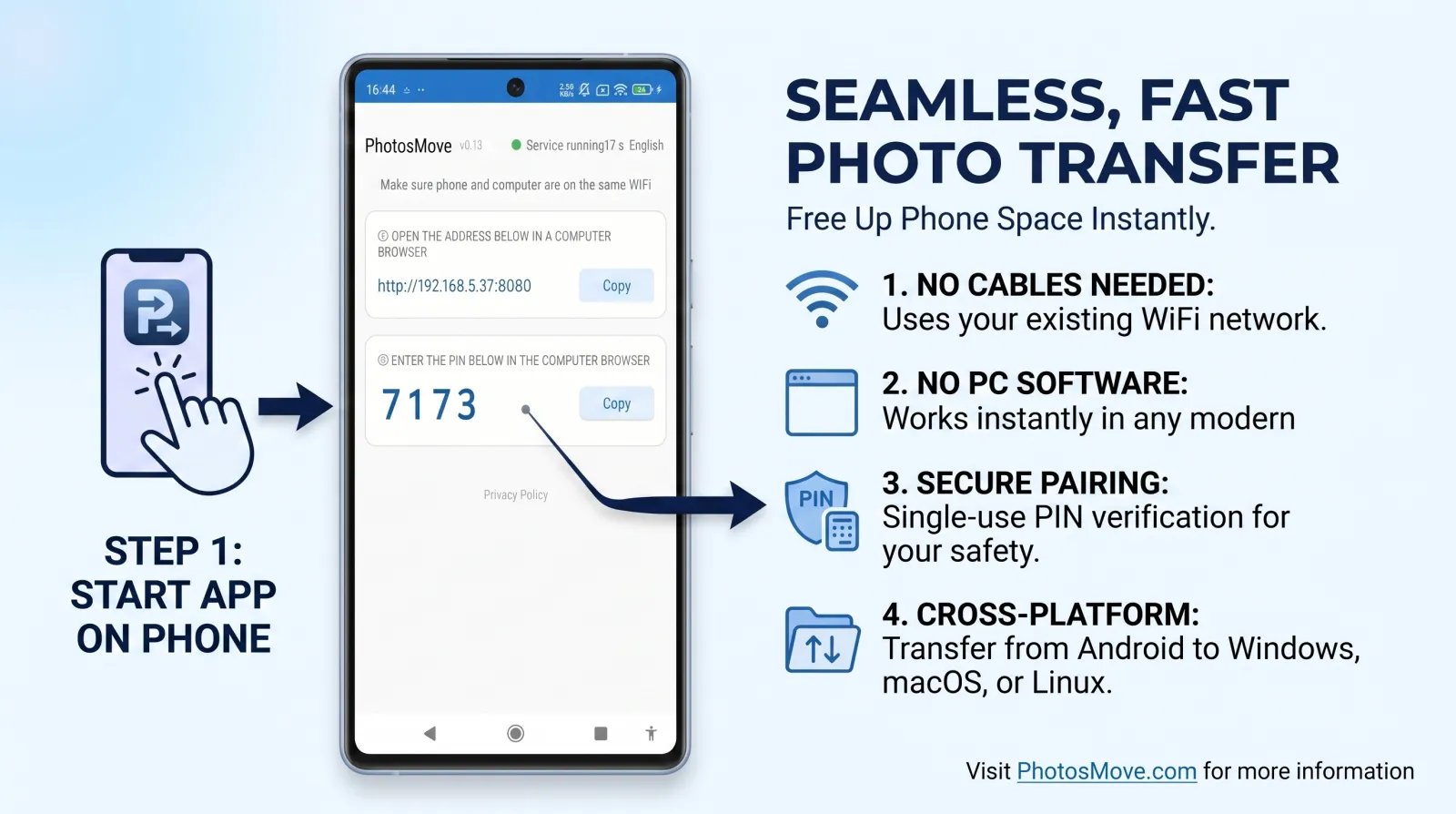
Install PhotosMove on your Android phone, start it, open the displayed address in a browser on your PC, and enter the PIN. As long as both devices can reach each other over Wi-Fi — same router, phone hotspot, or a wired PC on the same router — your photos download as one verified ZIP. The transfer itself uses no internet bandwidth.
Three network setups that work
1. Same router (recommended)
Both phone and PC connect to your home router. This is the most stable setup and gives the best throughput. Keep both devices on the same band if your router broadcasts separate 2.4GHz and 5GHz networks — or enable band steering so they end up together.
2. Phone hotspot
Enable Mobile hotspot on the phone and connect the PC to it. The PC gets an IP from the phone, and the transfer runs directly between the two. Useful when you're away from home or the router is unreachable. Watch battery drain on long transfers.
3. PC wired to the router, phone on Wi-Fi
Your PC doesn't need Wi-Fi at all. If it's plugged into the router by Ethernet and the phone is on the router's Wi-Fi, they're on the same network and the transfer works normally. This is the fix for PCs without a Wi-Fi adapter.
What speed you can realistically expect
- 5GHz Wi-Fi 5/6: tens of MB/s — roughly 10–40 GB per hour. Good enough to move a 100GB library overnight or during lunch.
- 2.4GHz, uncrowded: often 4–12 MB/s. Workable, but slow for huge libraries.
- 2.4GHz, crowded channel: can drop below 2 MB/s. Retry time — see below.
For many small files, the protocol overhead matters more than the link speed. That's why MTP over USB 3.0 frequently transfers photo libraries slower than a well-tuned Wi-Fi transfer — thousands of tiny file requests dominate the total time.
How the transfer works (technical, in plain words)
Tools like PhotosMove run a small HTTP server on the phone. Your PC's browser connects to it, lists your albums, and downloads a single streaming ZIP instead of thousands of individual requests. One large stream avoids the per-file overhead that kills MTP and FTP transfers. After the download, a SHA-256 hash is computed locally in the browser and compared against the phone's value, so you can verify the transfer without trusting anyone's word.
Fixing the two most common failures
"I can't reach the phone's address"
- Check both devices are on the same network — including that the router isn't isolating guest Wi-Fi from the main network.
- Keep the phone awake during the transfer (change the screen timeout temporarily).
- If a corporate firewall blocks it, try another network.
"It's extremely slow"
- Move both devices to the same band (2.4 or 5GHz).
- Change the router's channel if 2.4GHz is congested.
- Close large background downloads on other devices that share the network.
Method comparison for Wi-Fi transfer
How to transfer photos from Android to PC over Wi-Fi (PhotosMove)
-
Start the app on your phone
Open PhotosMove and tap start. The phone begins serving your albums on the local network.
-
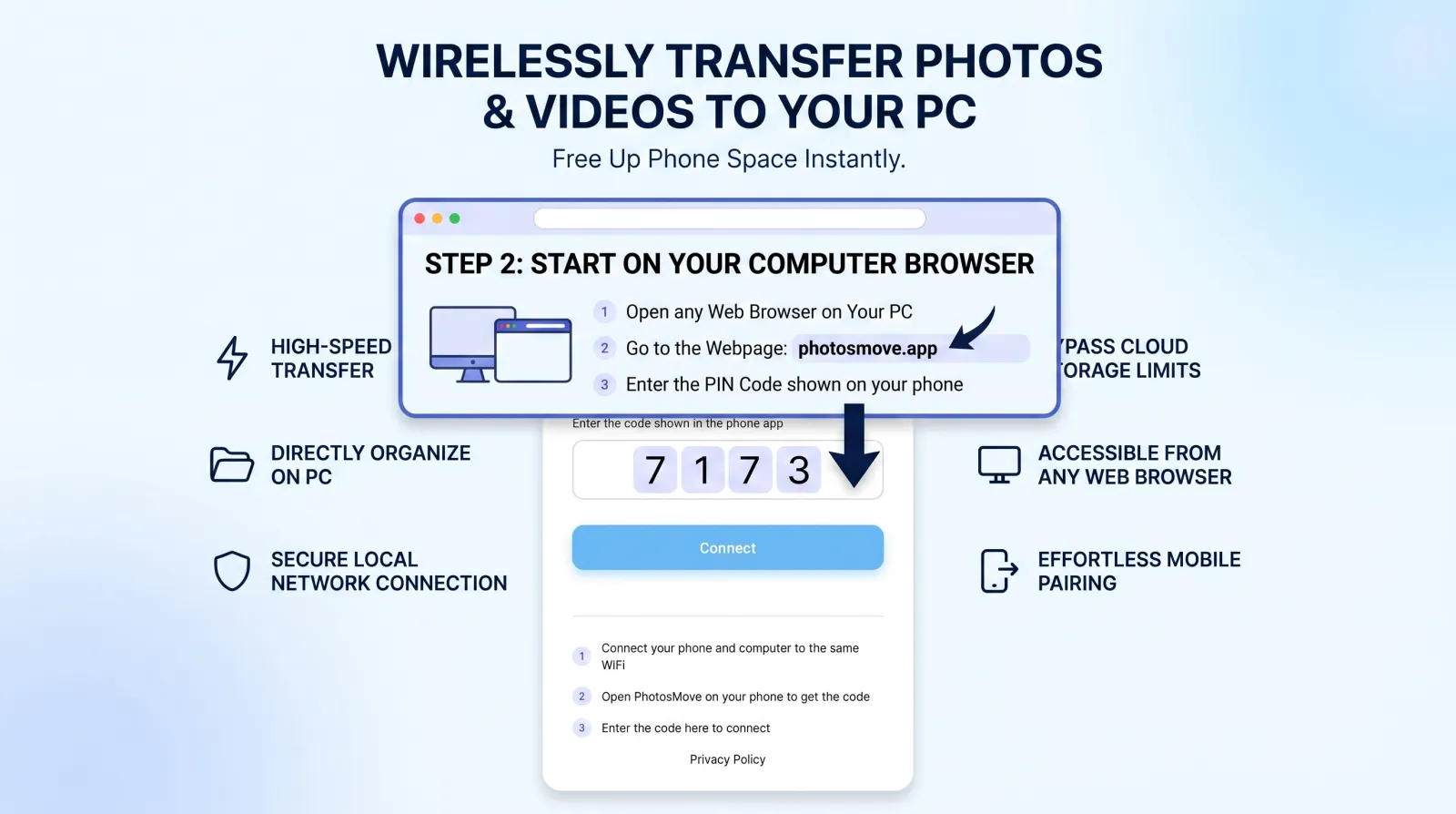
Open the connect page in any browser
On the PC, open the address shown in the app and enter the 4-digit PIN.
-
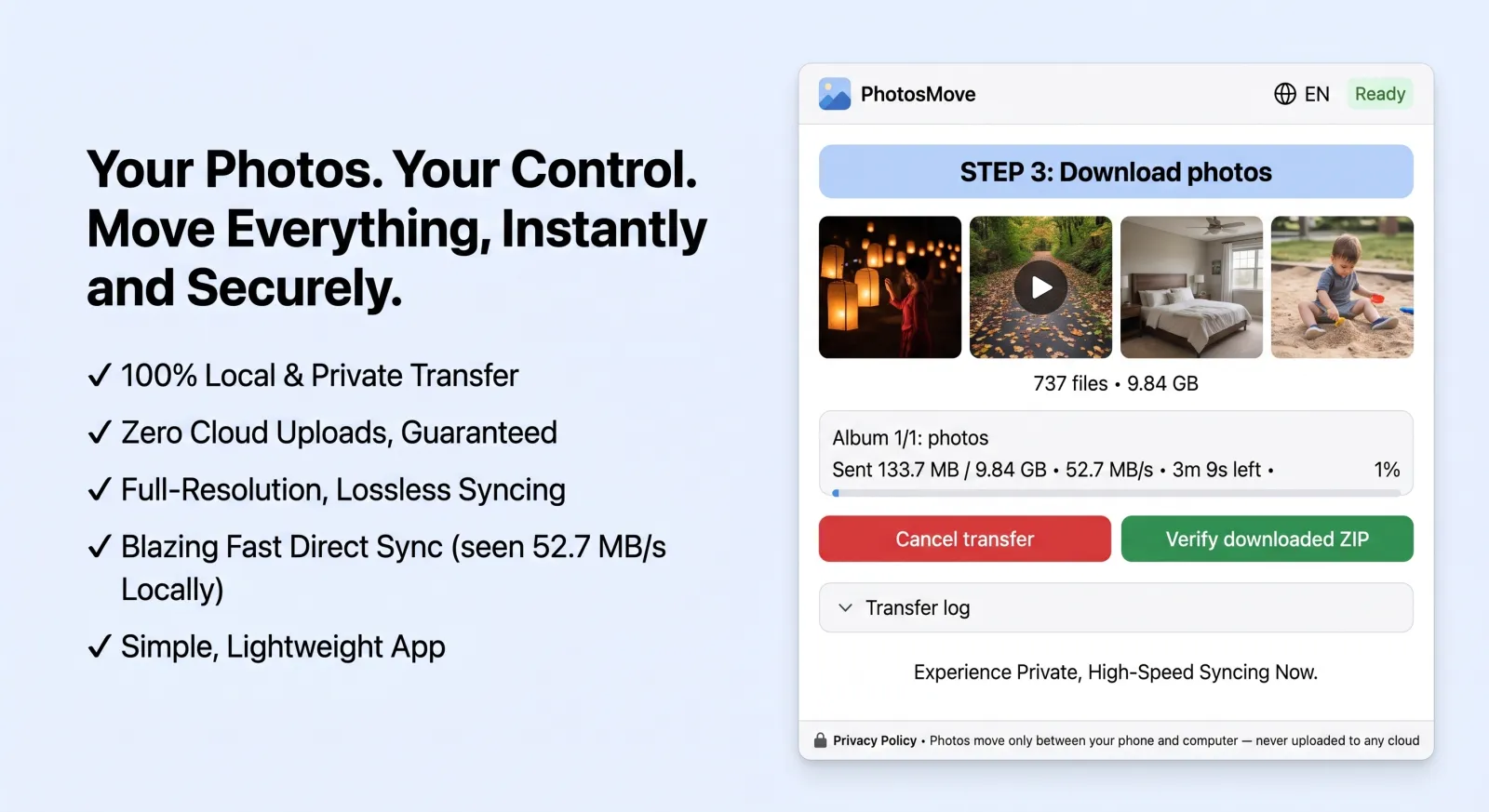
Download one ZIP — your entire library at once
One click downloads the streaming ZIP, and let the SHA-256 check confirm every byte.
-
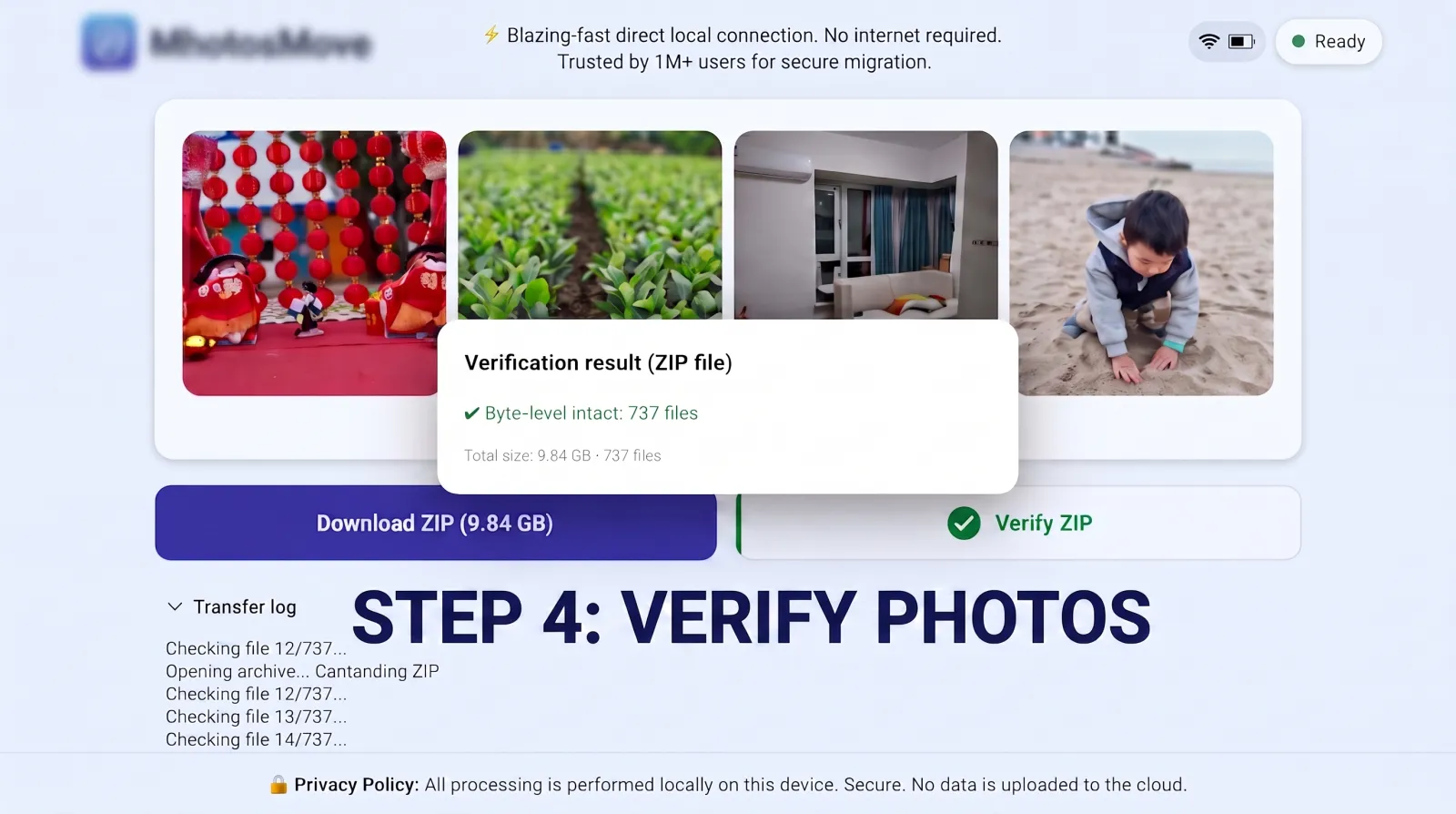
Verify it byte-for-byte
PhotosMove computes a SHA-256 checksum locally in your browser and compares it with the transfer manifest — green means every file arrived byte-perfect.
Frequently asked questions
Does Wi-Fi photo transfer need an internet connection?
No. The phone and PC only need to reach each other over Wi-Fi. The transfer never touches the internet.
How fast is Wi-Fi photo transfer in practice?
Tens of MB/s on a same-band 5GHz link — roughly 10–40 GB/hour. Crowded 2.4GHz can be several times slower.
What if my phone and PC are on different Wi-Fi networks?
Put them on the same network, or enable mobile hotspot on the phone and connect the PC to it.
Why can't my PC find the phone's server?
Usually one of: devices on different networks (check guest Wi-Fi isolation), the phone sleeping, a firewall blocking the port, or phone and PC split across 2.4/5GHz with no routing between them.
Move your whole library over Wi-Fi
PhotosMove — free, open source, byte-perfect, no cloud.
No account · No cloud · No PC software
Related guides